TL;DR: get started with Voicebox
- What it does: Voicebox is a free, open-source desktop app that brings local text-to-speech engines into one interface. You can use presets or clone a voice you have permission to use.
- What you need: A compatible computer, space for the app and chosen model, and internet access for initial downloads. CPU processing is supported; GPU support depends on your hardware and backend. We have not measured generation speed.
- Essential setup: Get the Windows installer from the official download page, open the app, download one suitable engine, create a preset profile, enter a short sentence, generate it, listen, and save the audio.
- Start simple: Try Kokoro for a preset-voice workflow. For instructed expressive presets, check Qwen CustomVoice 1.7B. Languages and emotion controls vary by engine; one voice does not support every feature.
- Keep the limits in mind: This guide combines v0.5.0 documentation and official screenshots with a verified Windows GPU-detection case. No generation-speed benchmark is provided. Check model licenses and voice permissions before publishing audio.
Jump to Windows setup · Follow the first-voiceover steps · See the screenshots · Fix Windows GPU detection
Want to turn a script into a voiceover without uploading every sentence to a subscription service? Voicebox is a free, open-source desktop app for generating AI speech locally. It brings several speech models into one interface, so you can use a ready-made voice, clone a voice you have permission to use, and organize the resulting audio into a larger project.
The interesting part is that “local AI voice generation” does not have to mean assembling a Python environment from scratch. Voicebox provides a Windows installer and a graphical interface. The more important decisions are which speech engine fits your computer, which languages it supports, and how you should ask it to deliver your script.
This tutorial walks through those decisions in a practical order. We’ll start with a short, simple generation, then move into voice cloning, expressive delivery, multilingual narration, audio cleanup, and troubleshooting. You can follow the whole workflow or jump straight to the part that is causing trouble.
Scope: The setup and engine guidance follows Jamie Pine’s Voicebox documentation, with the downloadable v0.5.0 release as the reference point. Sources were checked on October 18, 2026. The Windows GPU troubleshooting section additionally documents an inspected existing installation, a controlled relaunch that restored device detection, and one completed stock-voice sample with GPU attribution. This is not a fresh-installation or generation-speed benchmark. The narration practice scripts are original examples. The screenshots come from the official project interface, archived demo video, and public Windows download page, with their sources identified.
Screenshot walkthrough: Jump to the Windows installer choices, text input, generation controls, voice-profile setup, or audio playback. Each image opens at full size, and identifying profile panels have been excluded.
What is Voicebox, and which Voicebox do we mean?
For this guide, Voicebox means the desktop application maintained in jamiepine/voicebox on GitHub and distributed through voicebox.sh. Think of it as a studio that brings multiple text-to-speech engines together. The app provides the interface, saved voice profiles, generation history, and editing tools; the selected model does the speech synthesis.
That distinction explains a lot of otherwise confusing behavior. A feature available in one engine may disappear when you switch to another. A preset voice belongs to its own model. An expressive tag understood by one model can become an awkward spoken word in a different model. A language available somewhere in Voicebox is not necessarily available everywhere in Voicebox.
There is also a separate Meta research project called Voicebox. Meta’s announcement described a speech-generation research system and said its model and code were not being publicly released at that time. That announcement is not the installation guide for Jamie Pine’s app. Downloading the desktop application does not mean you are downloading Meta’s research model.
The desktop app’s v0.5.0 documentation lists seven TTS engines, while the current development documentation also lists Qwen VoiceDesign. For an installer-based tutorial, stick to the engines actually shown in your installed version. Don’t assume a feature described on the latest development branch has already reached every downloadable build.
Our approach will be simple: choose a specific job, pick a suitable engine, and test one short passage before making a longer recording. That gives you useful feedback without turning your first session into a comparison of every model in the catalog.
What you need before installing Voicebox
The official installation guide lists Windows 10 or later, 8 GB of RAM, a modern multicore processor, and 5 GB of available storage as minimum starting requirements. Its recommended configuration includes at least 16 GB of RAM, a CUDA-capable NVIDIA GPU, and at least 10 GB of free storage. These are general application guidelines, not a promise that every model fits comfortably on that configuration.
You should plan around the engine you intend to use. System RAM, GPU memory, and disk storage are different resources. Free space on your SSD does not solve a GPU out-of-memory error, and a large GPU does not stop a nearly full system drive from interrupting a model download.
The model-management documentation gives approximate download sizes and GPU-memory estimates. The following selection is useful for planning, but it should not be treated as a measured guarantee for your machine:
| Model | Documented model size | Documented approximate VRAM |
|---|---|---|
| Kokoro 82M | 350 MB | 150 MB |
| Qwen3-TTS 0.6B Base | 1.2 GB | 2 GB |
| Qwen CustomVoice 1.7B | 3.5 GB | 6 GB |
| Chatterbox Turbo | 1.5 GB | 1.5 GB |
| Chatterbox Multilingual | 3.2 GB | 3 GB |
| TADA 3B Multilingual | 8 GB | 8 GB |
Those figures do not represent your total installation footprint. Runtime components, auxiliary models, cached files, reference recordings, and finished audio need additional space. Keep some headroom instead of trying to fill the drive to its final gigabyte.
You’ll also need an internet connection for the installer and the initial model downloads. “Runs locally” describes where the speech is generated; it does not mean that a new installation already contains every model. A sensible first-session goal is one downloaded model, one working voice, and one exported clip.
For listening, ordinary headphones are enough to begin. Use them to catch clipped words, unexpected pauses, and pronunciation problems that can be easy to miss through laptop speakers. You do not need to buy recording equipment merely to try a preset voice.
Which Voicebox engine should you choose?
Choose by the task rather than by the largest number in the model name. Bigger models require more resources, and a feature-specific smaller model can be a better fit for a particular job.
Start with Kokoro when you want a simple preset voice
Kokoro is a sensible first choice for checking that local generation works, especially when you want to avoid recording a reference sample. Its upstream model card identifies it as an 82-million-parameter model with Apache-licensed weights. You select an existing voice rather than asking it to learn a new speaker from your audio.
Use that first experiment to answer basic questions: can the app load a model, produce intelligible speech, play it back, and save the result? Once those pieces work, you can move to a more demanding engine for a reason you can explain.
Use Qwen CustomVoice 1.7B for instructed delivery
If your priority is a narrator who sounds reassuring, restrained, excited, or deliberately paced, Qwen CustomVoice 1.7B is a useful starting point. The official Qwen model card distinguishes preset speech from reference-based cloning and marks instruction control for the 1.7B CustomVoice model. It does not mark the 0.6B CustomVoice or Base variants with the same instruction-control capability.
That is why this tutorial uses the 1.7B preset model for the emotion examples. A field accepting text is not enough reason to promise that every underlying model will follow it equally well.
Use a cloning engine when a particular authorized voice matters
The Voicebox cloning guide documents reference-audio workflows for Qwen3-TTS, Chatterbox Multilingual, Chatterbox Turbo, LuxTTS, and TADA. Qwen’s Base variants are the relevant choice when you want Qwen-based voice cloning. CustomVoice is a separate preset workflow.
For a recurring personal narrator, begin with your own voice. That keeps the practical question focused on the recording and model instead of introducing an unresolved permission question.
Use Chatterbox Multilingual for broader language coverage
Chatterbox Multilingual’s official model card lists 23 supported languages, including Hindi and Arabic. It is the relevant option when your target language falls outside Qwen’s ten-language set. Select the language explicitly and review the output with someone who understands it.
Use Chatterbox Turbo for English vocal sounds
Chatterbox Turbo is English-focused and supports paralinguistic sound tags such as a laugh or cough. These are useful for character lines and conversational moments. They are not a universal markup language shared by every engine.
Keep LuxTTS and TADA as deliberate next choices
LuxTTS targets lightweight English cloning and 48 kHz output. TADA offers a different long-form speech approach, but its upstream project also introduces Llama-based model licensing considerations. Neither is required to complete your first voiceover. Add another engine when it solves an actual problem in your current workflow.
How to install Voicebox locally on Windows
1. Download from the official project
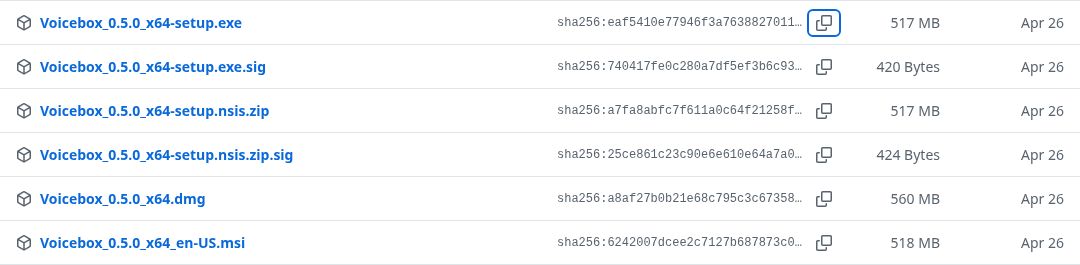
Open the official download page and choose the Windows build. You can also inspect the assets attached to the latest GitHub release. The project provides installer-based distribution, so the beginner route does not involve copying development commands into a terminal.
Before running anything, check that the download came from the expected project. Avoid repackaged installers, “activated” editions, and sites that ask you to install a download manager first. A free open-source application does not need a crack or an unofficial premium unlock.
2. Run the installer and open the application
Follow the Windows installation wizard, then launch Voicebox. The desktop package starts its bundled backend automatically. The official setup guide uses a green server-status indicator as the initial health check. A successful launch is useful, but a short completed generation is the better end-to-end check.
If Windows shows an application-reputation warning, pause and verify the source and current release guidance. Do not disable antivirus protection or make broad security changes just to finish a tutorial. An unexpected certificate error, changed download domain, or mismatched filename deserves investigation.
3. Check the selected processing backend
Open the GPU section in Settings. The GPU acceleration guide describes Windows paths for NVIDIA CUDA, Intel Arc XPU, DirectML, and CPU processing. Availability depends on the hardware, runtime, and installed version. A computer having “a GPU” does not by itself tell you which route the app can use.
On NVIDIA systems, Voicebox can offer a separate CUDA backend installation. The documented split includes a smaller server component and roughly 4 GB of CUDA libraries. That is additional to speech-model downloads. Let the installation finish, restart when the app requests it, and check the backend label again.
4. Download only the model needed for your first test
Use the model settings or start a generation with your selected engine. Expect the first run to include downloading and initialization. Watch the progress indicator rather than repeatedly clicking Generate because nothing has played yet.
Don’t switch engines halfway through that first experiment. If you change the model, voice, language, and script together, a failure becomes much harder to isolate. Establish one working combination, then make a single change at a time.
5. Keep a brief setup note
Write down the app version, model, model size, and selected backend. You don’t need a complicated testing spreadsheet. A few lines in a text file are enough to prevent “it worked yesterday” from becoming your only troubleshooting information.
Leave developer installation, Docker, and remote-server configuration for later unless you already need those features. The desktop installer is the shortest route to the voice-generation workflow covered here.
Generate your first voiceover with a preset voice
A preset voice is the cleanest first test because it removes reference recording quality from the equation. The preset-voice guide explains that Kokoro and Qwen CustomVoice profiles are attached to their source engines. A preset from one engine cannot simply be carried into a different engine as though it were a universal voice file.
- Open the voice-profile creation flow.
- Choose a preset-capable engine, such as Kokoro.
- Select a voice appropriate for the language you want to generate.
- Give the profile a neutral working name, such as “Tutorial Narrator.”
- Save the profile and select it in the generation interface.
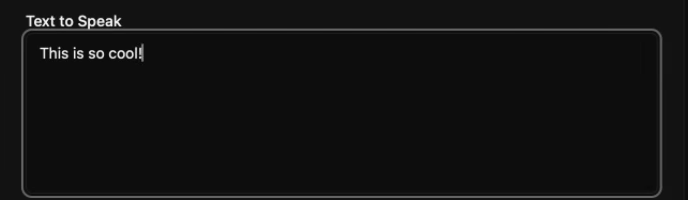
Try this short original script:
Welcome! In this lesson, we’ll create a short voiceover on this computer. First, we’ll check the sound. Then we’ll work on the delivery.
Generate it, listen from beginning to end, and download the result. The official quick-start workflow follows the same basic sequence of selecting a profile, entering text, generating audio, previewing it, and saving it.
For this first test, judge only whether the system is working. Is every sentence present? Is the speech understandable? Can you replay the saved file outside Voicebox? A voice that isn’t your final creative choice can still prove that the installation is healthy.
If the output is functional but not appealing, change the voice or engine next. If the output never arrives, solve that technical problem before attempting a longer script. Mixing installation debugging with creative evaluation usually wastes time.
How to create a local voice clone
Voice cloning starts before you click a button: make sure you have permission to use the recording and the speaker’s voice for the intended project. For practice, record yourself. Do not treat a publicly available interview, podcast, or video as automatic permission to create a reusable synthetic version of its speaker.
Record a useful reference sample
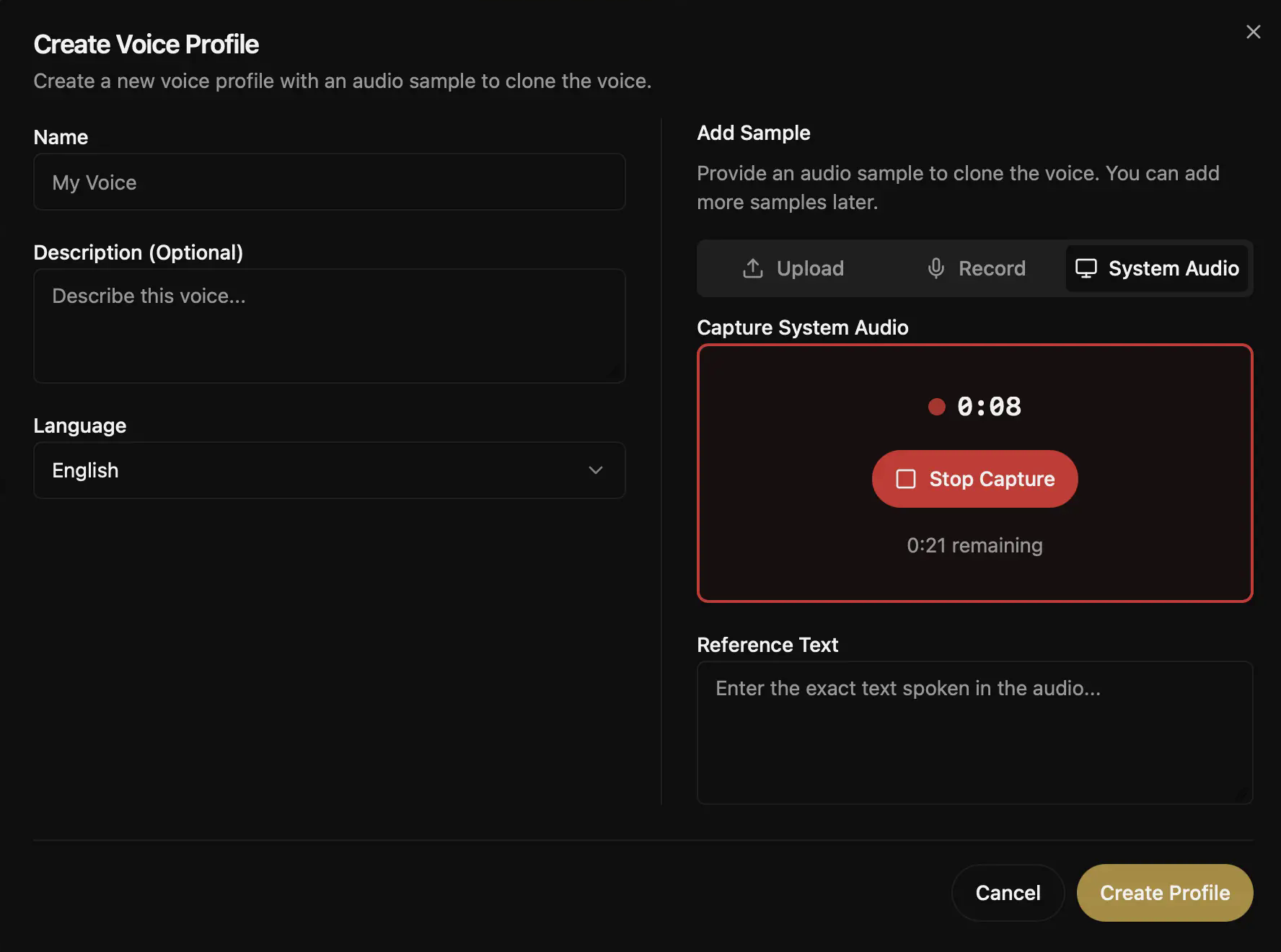
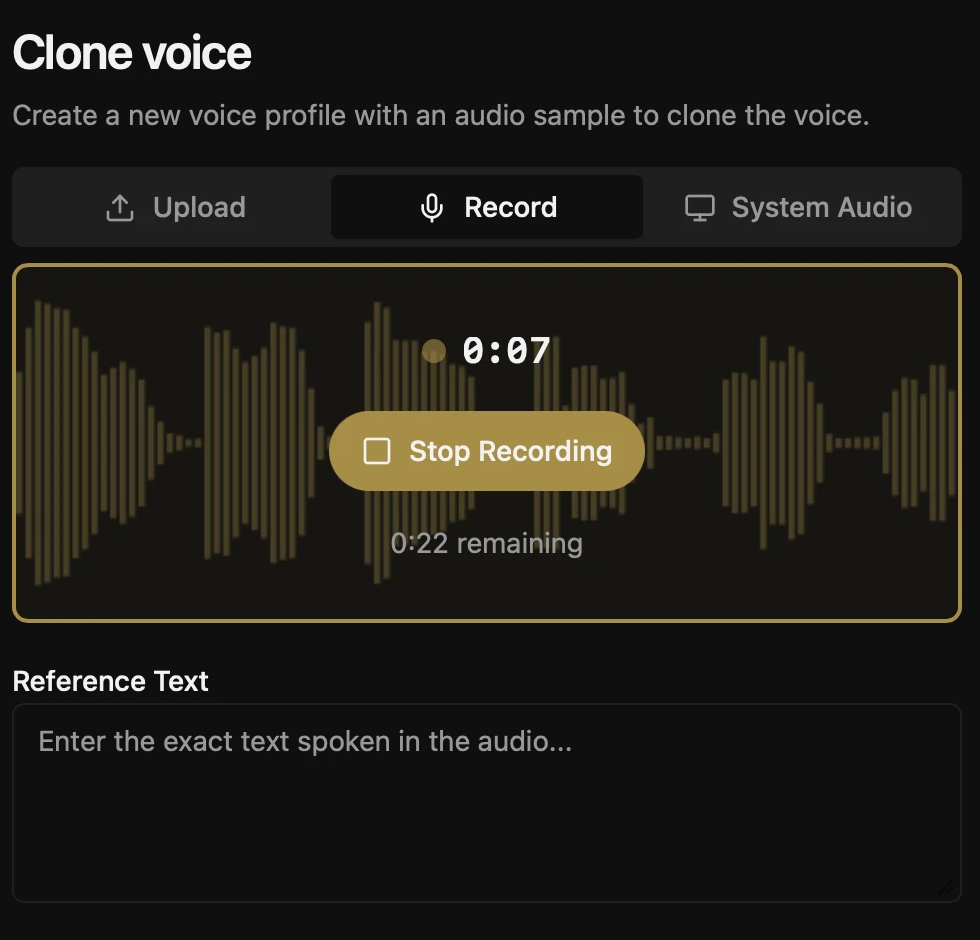
The cloning documentation recommends roughly 10–30 seconds of clear speech. Even when an upstream model advertises cloning from a shorter sample, a tiny clip is not automatically the best practical choice. A quiet, understandable recording gives you a more useful starting point than a very short clip surrounded by music or overlapping conversation.
Choose a room with little background noise. Keep your distance from the microphone reasonably consistent, and speak in the delivery you want to use most often. If the target is a calm tutorial narrator, an exaggerated shout is a poor reference for that goal.
Here’s an original recording prompt you can read naturally:
Today, I’m explaining a small idea in a simple way. There’s no need to rush. I’ll describe the first step, leave a little space for the listener, and then move on to the next part.
This is practice material, not a model-specific magic phrase. If you stumble badly, make another recording. A clean restart is usually easier to manage than a reference containing several false starts and corrections.
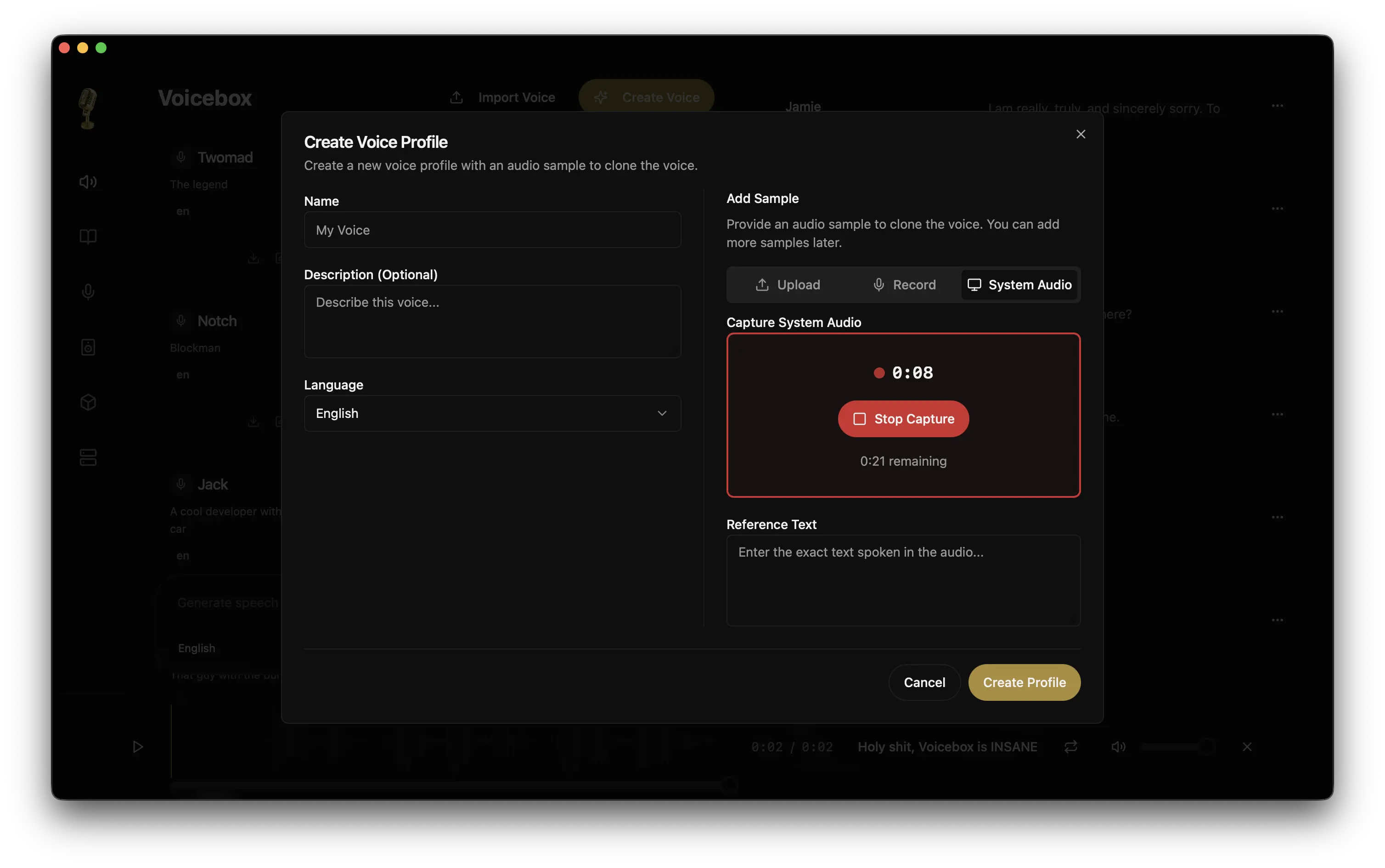
Create the profile and check the reference text
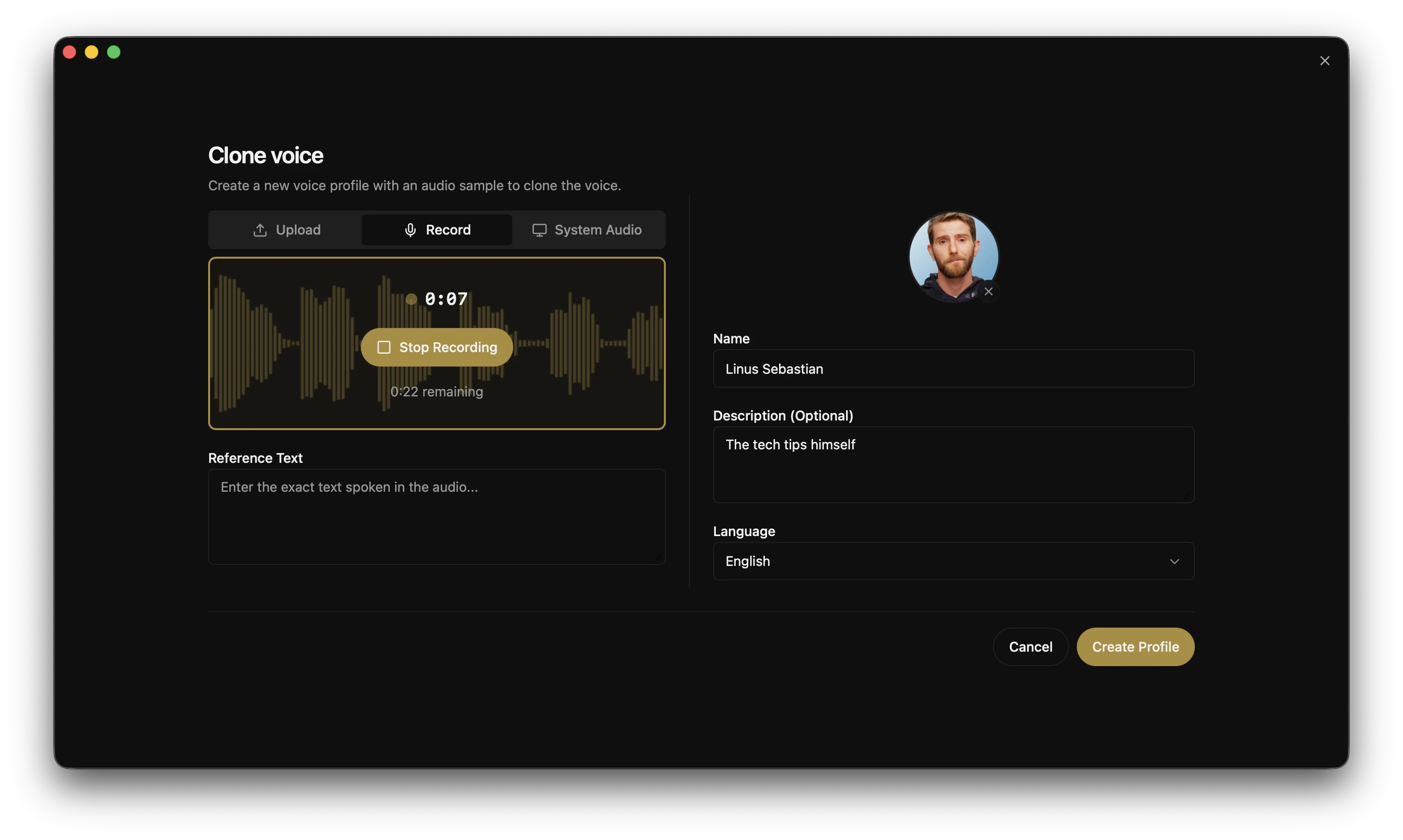
In the voice-creation flow, select a cloning-capable engine and provide your recording. The profile documentation covers recording and uploaded samples. Use a descriptive neutral label so you can recognize the profile later without putting private identifying information into screenshots or exported project names.
Where the workflow requests reference text, enter what was actually spoken. The recording and transcription guide specifically distinguishes a voice sample’s verbatim reference text from a cleaned-up transcript. If the recording says “we’re,” don’t silently rewrite it as a longer sentence that never occurred in the audio.
Check names, numbers, and missing words particularly carefully. Automated transcription can be useful assistance, but it is still something to review. For the sample, accuracy matters more than polishing the speaker’s grammar.
Test the clone on different text
After saving the profile, generate a sentence that was not in the sample. Repeating the reference script alone tells you less about how the voice behaves on new material.
Listen for three separate things: whether it resembles the intended speaker, whether it says the correct words, and whether the delivery fits the task. These are different qualities. A recognizable voice that drops words still needs work; a clear narrator with only a loose resemblance may be fine for some projects but wrong for a personal voice-preservation goal.
Keep your first reference unchanged while testing. If you immediately replace it with another sample, you lose the baseline for comparison. Once you identify a particular problem, such as excessive room echo, make a targeted new recording and compare again.
How to make AI voices more expressive
There are several different ways to influence the sound, and it helps to keep them separate. The script communicates meaning. Delivery instructions ask a compatible model how to speak. A reference sample supplies characteristics of a particular voice. Post-processing changes the generated audio afterward.
Start by deciding what is missing. Is the sentence unclear? Is the pace too hurried? Does the narrator sound too energetic for a sensitive explanation? “Make it more emotional” is less useful than a specific description of the listener experience you want.
Use a separate delivery instruction with Qwen CustomVoice 1.7B
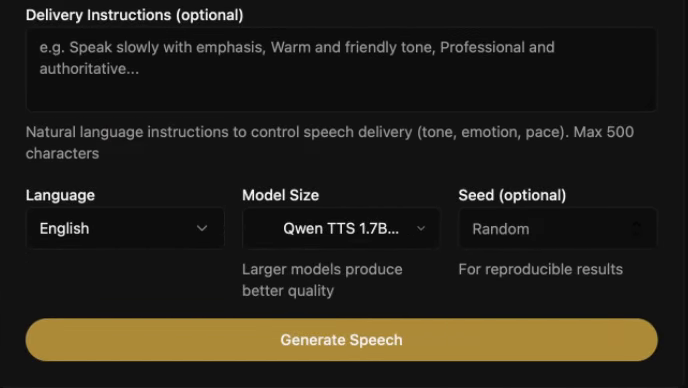
Voicebox’s preset documentation describes a delivery-instruction control alongside the generation text. With an appropriate Qwen CustomVoice profile selected, put the spoken words in the main text area and the performance direction in the separate instruction area.
Keep your first instruction short. The following are original examples you can adapt:
- Friendly tutorial: Explain this patiently, with a relaxed pace and clear sentence endings.
- Quiet reassurance: Use a gentle, steady delivery. Leave a little space after the first sentence.
- Product introduction: Sound interested and upbeat, while keeping the pace comfortable.
- Serious announcement: Speak evenly and clearly, with restrained energy and no dramatic flourish.
- Story dialogue: Begin with uncertainty, then let a small sense of relief enter the final sentence.
Try two instructions against exactly the same script. For example, generate the tutorial example once as a patient explanation and once as an excited discovery. Keep the text and voice fixed. You can then decide whether the change actually helped instead of being distracted by new wording.
Avoid contradictory instructions such as “whisper loudly, speak quickly, and pause after every word.” If a prompt contains five different goals, you may not know which part the model followed. Improve one dimension at a time.
Use sound tags only with the engine that supports them
For Chatterbox Turbo, the tagged release documentation lists sound cues including laugh, chuckle, gasp, cough, sigh, groan, sniff, shush, and throat clearing. Voicebox offers a slash-triggered tag inserter for this workflow. Its documentation warns that other listed engines can read those bracketed cues literally.
Here’s a small original English example:
I checked the folder three times. [sigh] It was on the desktop all along. [chuckle]Use it as a test of the supported sound-cue mechanism. Don’t assume the same line will produce expressive Hindi, Japanese, or Arabic audio merely because another engine in the app supports those languages.
Sound cues work best when they serve the scene. A laugh after every sentence can make an instructional voiceover distracting. A single sigh may communicate a character’s frustration more effectively than several competing cues.
Don’t confuse a rewritten persona with vocal delivery
The v0.5.0 release notes also describe local-LLM personality features that can compose or rewrite text. That changes what is said, whereas a delivery instruction aims at how it is spoken. If your script must remain exact, review any rewritten text before generating or publishing it.
This matters for tutorials, quotations, product claims, and instructions. A livelier rewrite can still be wrong if it adds a promise you never intended to make. Preserve the approved script separately and compare the final spoken wording against it.
How to generate multilingual voices in Voicebox
Start with the language of the actual script. Selecting a target language in a speech tool is not the same as translating the text into that language. Prepare the words you want spoken, then choose a compatible engine and voice.
Understand the language boundaries
Qwen’s official project lists Chinese, English, Japanese, Korean, German, French, Russian, Portuguese, Spanish, and Italian. Its preset speakers have different native-language backgrounds, and the project recommends considering that when selecting a speaker.
Chatterbox Multilingual’s documented set includes Arabic, Chinese, Danish, Dutch, English, Finnish, French, German, Greek, Hebrew, Hindi, Italian, Japanese, Korean, Malay, Norwegian, Polish, Portuguese, Russian, Spanish, Swahili, Swedish, and Turkish. Chatterbox Turbo and LuxTTS are English-focused options. Choose the relevant engine before looking for a language in the interface.
Kokoro offers language-specific preset choices, including Hindi. The Voicebox documentation uses different counting conventions around its English varieties, so the practical check is the available language and voice combination, not a headline total.
Try a short native-language passage first
Here are original test sentences with straightforward meanings:
- English: Welcome to this tutorial. Let’s begin with a short example.
- Hindi: इस ट्यूटोरियल में आपका स्वागत है। चलिए एक छोटे उदाहरण से शुरू करते हैं।
- Spanish: Bienvenido a este tutorial. Vamos a empezar con un ejemplo breve.
- French: Bienvenue dans ce tutoriel. Commençons par un exemple simple.
- Japanese: このチュートリアルへようこそ。短い例から始めましょう。
For Hindi, choose an engine that actually supports it, such as Chatterbox Multilingual, or an appropriate Kokoro preset. Do not spend time trying to persuade a Qwen model to cover a language outside its documented set.
For a real publication, have a fluent speaker check the script and the generated audio. A sentence can sound smooth to someone who doesn’t know the language while containing an obvious pronunciation or meaning problem.
Be careful with mixed-language scripts
A technology tutorial may combine Hindi explanation with English product names, commands, and abbreviations. Start by testing the difficult sentence on its own. Keep brand spellings intact in the written article, but use a separately maintained speech script if a pronunciation-friendly form is needed for narration.
For example, you might display “API” on screen while testing whether speaking its letters separately sounds clearer. Record that change in your narration script rather than silently changing the source documentation.
With cloned voices, pay attention to the language of the reference recording as well. Resemble’s multilingual guidance notes that a reference can influence the accent of another-language output. That is a reason to review carefully, not a reason to promise perfect accent transfer.
If a passage keeps failing, divide the language problem from the voice problem. First test a supported preset or a simpler target-language sentence. Then bring back the more demanding voice or mixed-language phrasing.
Write scripts that sound natural when spoken
A well-written blog paragraph is not always a good narration paragraph. Readers can scan backward, skip a parenthesis, and inspect a long list. Listeners have to follow the sentence in real time.
Before blaming the model, read the script aloud yourself. If you need to stop halfway through to work out what a sentence means, the listener will probably need more help too.
Give each sentence a clear job
Consider this original example:
After downloading the model, which may require additional storage depending on your selected backend and other cached components, choose a voice and enter your text before clicking the generation button.
It is understandable on a page, but it asks the listener to hold several details at once. A more speech-friendly version is:
First, let the model download finish. Then choose a voice and enter your text. When you’re ready, start the generation.
The storage explanation can become its own sentence elsewhere. You’re arranging information for listening rather than simply making everything shorter.
Handle numbers and abbreviations deliberately
For a spoken deadline, “October eighteenth” may be easier to interpret than an ambiguous numeric date. For a version number, decide whether the listener needs every digit. For a command, decide whether it should be spoken at all or shown on screen while the narrator explains its purpose.
Maintain two files if necessary: the exact technical text shown to the viewer and the pronunciation-adjusted narration text. That prevents a spelling workaround for speech from accidentally appearing as a broken command in the article.
Use punctuation as a starting point
The speech-generation guide recommends sensible punctuation and shorter passages for control. Treat punctuation as a helpful cue, then listen to the result. It is not a frame-accurate timing system, and a row of extra commas should not become your main editing method.
If you need a precise gap for an on-screen action, create separate clips and arrange their timing in the edit. That is more predictable than asking one paragraph to contain every timing decision.
Keep a small pronunciation test
Before a long tutorial, prepare a short passage containing its hardest words: the product name, a library name, a person’s authorized name if relevant, and any recurring abbreviation. Once those sound acceptable, use the same spellings consistently throughout the narration script.
This small preparation step gives you a reusable reference. If a model update changes a pronunciation later, you can test the same passage again rather than discovering the problem halfway through a finished video.
A repeatable workflow for tutorial voiceovers
Once a short test works, the next challenge is consistency. A useful workflow should let you improve one section without forcing you to regenerate the entire project.
Step 1: Divide the script by meaning
Split an installation tutorial into its introduction, prerequisites, download, first launch, first generation, and troubleshooting. Keep related instructions together, but avoid creating a single clip so long that one mispronounced word makes the whole recording inconvenient to replace.
Voicebox’s v0.5.0 generation documentation describes automatic chunking and crossfades, with a 50,000-character text ceiling in that release. That is useful infrastructure, but it is not a reason to stop organizing your material. Editorial sections still make review easier.
Step 2: Keep a stable voice specification
Record the profile, model, language, and basic delivery direction for the project. For example: “Tutorial Narrator; Qwen CustomVoice 1.7B; English; patient explanation; restrained energy.” This is your own production note, not a requirement to use those exact settings.
When a section needs more energy, change the delivery deliberately and label the take. Otherwise, small accidental changes can accumulate into a narrator who seems to switch personality between paragraphs.
Step 3: Review before producing the next batch

After the first few sections, listen in sequence. Check whether the pace is comfortable across transitions and whether repeated technical terms sound consistent. It is easier to fix the direction early than to discover an unsuitable style after generating every chapter.
Step 4: Name exports so you can find them
Use filenames such as “01-introduction-take-02” and “02-download-take-01.” Include enough information to distinguish the chosen recording from the rejected attempts. Avoid putting private client names, email addresses, or internal project details into filenames that may later be shared.
The generation-history documentation describes saved generations and ways to revisit or regenerate them. Keep your final exported audio alongside the approved script as well. Application history is convenient, but a clearly organized finished project is easier to hand to an editor or revisit later.
Step 5: Keep a clean master
Save a clean version before adding music or heavy effects. If the finished mix later sounds muddy, you can return to the narration without trying to reverse several processing decisions. Make a compressed delivery copy when needed, while preserving the highest-quality practical source you have.
Use audio effects carefully
Voicebox includes an effects workflow for operations such as equalization-style filtering, compression, gain, pitch changes, reverb, and delay. Its effects-pipeline documentation describes reusable chains and multiple versions of a generation.
For an instructional voiceover, begin with no effects. Listen to the speech by itself, then add only what solves a specific problem. A character voice in a game may benefit from an obvious effect; a software setup explanation usually benefits more from intelligibility.
Keep these distinctions in mind:
- Changing pitch is a sound-design choice. It is not a substitute for permission to use the source voice.
- Adding reverb changes the sense of space. Too much can make closely spaced instructions harder to understand.
- Increasing gain changes level. It does not repair missing words or an incorrect pronunciation.
- Compression can help manage dynamics, but a heavy setting is not automatically more professional.
Compare processed and unprocessed versions at a similar listening level. Otherwise, the louder take can seem better simply because it is louder. If you cannot explain what an effect improved, leave it off until you have a clearer reason to use it.
When background music is added later, check the important instructions again. A voice that sounds clear in isolation may be difficult to follow once music, transitions, and sound effects compete for attention.
Create a multi-speaker story or conversation
The Stories workflow lets you create a project, place voice clips on tracks, adjust their position, trim them, and render the result. It can be useful for a question-and-answer lesson, a narrated demonstration, or an original character scene.
Start with a tiny conversation rather than a complete podcast. Here’s an original two-role example:
Learner: The app opened. Does that mean the setup is finished?
Guide: Almost. Let’s generate one short sentence and play the saved file.
Learner: Why save it first?
Guide: That checks the whole path, from generation to a file you can use elsewhere.
Create each line with the appropriate voice, then arrange the clips in order. Leave enough space for the exchange to feel understandable. A conversation does not become more natural simply by removing every pause.
The Stories Editor documentation is the place to check the currently supported controls. The v0.5.0 release notes also describe imported audio and per-clip volume. Keep imported music and sound effects subject to their own rights checks.
For a longer piece, finish one representative scene first. It should include both speakers, a transition, and the type of background audio you expect to use. That small scene becomes a useful creative reference for the rest of the project.
Before export, listen to every handoff between voices. Check that the second speaker doesn’t interrupt unintentionally, that no clip begins halfway through a word, and that the level change between speakers is comfortable.
Is Voicebox really private and offline?
Voicebox is designed for local processing. The project’s security policy says audio is processed locally by default and distinguishes that behavior from remote-server mode. That is a meaningful privacy advantage for someone who wants to keep scripts and voice references on their own computer.
Still, be precise about what “offline” means. Installation, model retrieval, and updates involve downloads. Once the required components are available, the local workflow performs inference on your hardware. Before relying on it during travel or an unreliable connection, run your intended workflow with the necessary models already present.
Local storage also creates local responsibilities. A voice profile, a reference recording, and a transcript can remain sensitive even if they were never uploaded to a commercial TTS service. Keep them out of publicly shared folders and be careful when sending project backups to someone else.
Remote mode changes the privacy boundary
The remote-mode documentation explains that a separate server can do the processing while the desktop app acts as the interface. It also warns that the documented API has no authentication and should not be exposed casually to the internet.
If your objective is a simple private local voiceover workflow, leave remote mode alone. You do not need port forwarding, a public tunnel, or a rented GPU to follow this tutorial. A remote machine may be useful for an advanced setup, but then you must consider who operates it, who can reach it, and where its files are stored.
Keep screenshots and support reports clean
Before sharing a screenshot, inspect the whole image. Look at profile labels, generated text, recent captures, folder names, and any open settings panel. A harmless-looking troubleshooting image can reveal a script or recording that was never meant for publication.
For support, share the smallest relevant error message and technical details. Avoid uploading your entire data directory as a shortcut. If a reproducible example is needed, create one using a neutral script and a voice sample you are authorized to share.
Can you use Voicebox audio commercially?
There are several separate questions here: the license for the application, the license for the selected model, rights in the script and source recording, and permission to use the speaker’s identity. A permissive app license does not answer all four.
Voicebox’s application license is MIT. The models have their own terms. The primary sources identify Qwen3-TTS, Kokoro, and LuxTTS under Apache 2.0, and Chatterbox under MIT. Check the exact model and version you are using rather than assuming the application’s license automatically covers everything it downloads.
TADA requires particular care. Its official repository says the code is MIT-licensed but the model weights use the Llama 3.2 Community License. It also documents upstream Llama access prerequisites. Do not describe every Voicebox engine as having identical unrestricted commercial terms.
The project’s responsible-use guidance says users must have the right to use voices they clone or import. It allows your own voice and explicitly authorized material, and rejects unauthorized impersonation, fraud, and other abusive uses. It also calls for synthetic-audio disclosure where required by law, platform rules, or audience expectations.
For a client project, keep a simple rights record: which voice was used, who authorized it, what the permission covers, which model generated the audio, and where the relevant license can be found. If an agreement allows internal training material, don’t silently extend it to paid advertising.
Also check the script itself. You may own your narration while lacking permission to reproduce a long passage from someone else’s audiobook. Voice-generation software doesn’t remove that separate issue.
This is a practical checklist, not a legal opinion. Where the project involves a recognizable person’s commercial identity, regulated claims, or a substantial contract, get advice appropriate to the situation before publishing.
Common Voicebox problems and what to check first
When something fails, simplify the test. Use one short neutral sentence, one supported language, one profile, and one model. Keep the error visible long enough to record it accurately. Repeatedly changing every setting creates more uncertainty than it resolves.
The first generation seems stuck
Separate downloading, loading, and generating. They are different stages, and the first run can spend time before speech synthesis begins. The official troubleshooting guide points readers to model-download progress and cached-model behavior.
Check whether bytes or progress indicators are still changing. If the download has failed, investigate the connection and available storage. If it has completed but loading fails, the error message and selected model become more important than the speed of the internet connection.
Don’t submit a long script to “see if that works instead.” A longer input adds another variable while making a successful test slower to review.
The app reports an out-of-memory error
Try a smaller model or a less demanding engine, close other memory-heavy work, and unload models you no longer need. The model-management guide documents unloading as distinct from deleting a downloaded model: freeing runtime memory does not have to mean downloading the same files again later.
Keep the distinction between system RAM and VRAM clear when looking for a solution. Record the exact model variant that failed. “Qwen didn’t work” is less informative than the specific size, engine, and error.
Generation works, but it is unexpectedly slow
Check the actual backend shown in Settings rather than assuming that a gaming GPU is being used. If the app selected CPU processing, that may explain the experience. For NVIDIA systems, confirm that the separate CUDA backend finished installing.
Avoid borrowing a speed figure from an unrelated computer or model. The length of the text, initialization state, engine, hardware, and other activity all matter. For your own planning, time the same short passage after the model is loaded and keep the conditions consistent.
The backend status is red or the server will not start
Close duplicate Voicebox instances and restart the application. Check the app’s logs for the first concrete error. The official troubleshooting documentation identifies port 17493 as a possible conflict point.
If another program owns that port, identify it before taking action. Do not kill an unfamiliar process solely because a command found it. It may belong to work you need. The goal is to resolve a known conflict, not to shut down unrelated software.
The voice reads “[laugh]” out loud
Check the engine. A bracketed cue is not a standard speech command everywhere in the app. Use the documented Chatterbox Turbo sound-tag workflow for the English example, or remove the tag and use an engine-appropriate delivery method.
If the project is multilingual, choose between language coverage and that specific sound-cue feature deliberately. You may need a different creative approach, such as a separate authorized sound effect, instead of forcing unsupported markup into the narration.
The clone sounds wrong or the words are unclear
Listen to the reference sample by itself. Is there background speech? Is the microphone distorted? Does the transcript match? Then test a plain short sentence without effects.
If the clean test is understandable but not sufficiently similar, compare another authorized sample. If the words are missing or garbled, focus on text, language, and model behavior first. These are different problems and may need different fixes.
The requested language is unavailable
Check the engine’s documented language set. A language supported by Chatterbox Multilingual will not automatically appear in an English-only model. Also check whether your selected preset is tied to a particular language or engine.
Use a short sentence in one language before trying code-switching, unusual names, or technical abbreviations. That establishes whether the basic path works.
A FlashAttention warning appears
The project’s troubleshooting guide explains that a missing FlashAttention warning does not necessarily prevent generation. Treat a warning and a fatal error differently. If audio generation works, don’t turn a non-blocking message into an unnecessary package-installation project.
For an installer-based Windows workflow, avoid mixing random Python packages into the bundled runtime based on an old forum answer. First check guidance for your current Voicebox release.
An update changes the behavior
Keep the version information from your working setup and test the same short reference passage after updating. Note whether the change affects all profiles or only one engine. Export important finished work before attempting invasive repairs.
Do not start by deleting the application’s entire data folder. That can remove history and profiles instead of fixing the actual issue. Use targeted diagnostics and backups before any destructive reset.
Voicebox not detecting GPU on Windows
Voicebox can open normally, show a CUDA backend, and still fail to detect your NVIDIA GPU. During the initial inspection of this Windows installation, the important clue was an environment variable: CUDA_VISIBLE_DEVICES=-1. Both the desktop app and its CUDA server had inherited that value. NVIDIA’s utility could see the graphics cards, but the application’s CUDA environment hid them.
Verified on October 18, 2026: A controlled restart through the saved device-specific launcher changed gpu_available from false to true. A short stock-voice generation then completed on the selected GPU. The user-level environment setting and other jobs were left unchanged. This verifies the detection fix and one sample inference, not sustained reliability or generation speed. The portable BAT below adapts that launcher with editable placeholders; the placeholder version was not independently executed.
Check what “healthy” actually means
The inspected app and API reported version 0.5.0. The machine had two NVIDIA GeForce RTX 5080 cards, and its CUDA backend was available and active with the cu128-v1 library bundle. Before the controlled restart, its health response showed status: healthy, gpu_available: false, gpu_type: null, and model_loaded: false.
Those fields answer different questions:
- Healthy API: The server answered the health request.
- CUDA backend available and active: The CUDA backend is installed and selected. That alone does not establish device detection.
- GPU available: The running backend reports access to a supported acceleration device. For this NVIDIA setup, also look for a CUDA label in
gpu_type. - Model loaded: The health route reports its tracked model state. It is not a universal success indicator for every engine path: this CustomVoice test completed while that flag still read false.
The official Voicebox v0.5.0 health implementation checks torch.cuda.is_available() separately from model loading. It can also obtain backend_variant from an environment setting. So an unloaded model does not explain away failed GPU detection, and a cuda variant label is not proof that CUDA can see a card.
Why CUDA_VISIBLE_DEVICES=-1 matters
NVIDIA documents CUDA_VISIBLE_DEVICES as a filter controlling device visibility and enumeration. An invalid index ends the visible-device list; placing -1 first leaves no devices visible. In this case, the user-level setting and both running Voicebox processes contained -1. That was the confirmed visibility blocker; the inspection did not establish who set it or why.
The saved launcher instead selects index 1 and sets CUDA_DEVICE_ORDER=PCI_BUS_ID. That index belongs to this dual-GPU configuration. On an appropriate single-GPU system, use 0; blindly copying 1 can select a nonexistent device. CUDA also renumbers the filtered list: when physical GPU 1 is the only visible device, it becomes logical CUDA device 0. Seeing device 0 inside the application is therefore not automatically a mismatch.
Start a fresh app and backend with the intended setting
A new launcher cannot change the environment of Voicebox processes that are already running. Follow this order:
- Finish any active generation or other work, then exit Voicebox normally.
- Check Task Manager to confirm that
voicebox.exeand itsvoicebox-server-cuda.exebackend have exited. If the backend remains, investigate before relaunching. - Set the installation folder and appropriate GPU index in the BAT below, then run it. It sets the environment before starting the desktop app, which starts its backend.
- Allow startup to finish, then check the actual API fields rather than relying on the window opening.
The existing device-specific launcher was verified in the controlled restart. Below is its sanitized portable adaptation; this placeholder version has not itself been executed as a separate test. Replace <VOICEBOX_INSTALL_DIR> with your existing installation folder. It refuses to launch when it detects an existing desktop instance, but does not check for an orphaned backend. It changes only the launcher’s local environment and what its child process inherits; it does not edit Windows-wide settings, install packages, or force-stop processes.
@echo off
setlocal
rem Portable form of the saved launcher used in the verified relaunch.
rem This placeholder example was not independently executed.
rem Replace this placeholder with the existing installed application folder.
set "VOICEBOX_EXE=<VOICEBOX_INSTALL_DIR>\voicebox.exe"
rem Existing dual-GPU launcher uses 1. Use 0 on an appropriate single-GPU PC.
set "VOICEBOX_GPU_INDEX=1"
if not exist "%VOICEBOX_EXE%" (
  echo Edit VOICEBOX_EXE to the existing installation folder.
  exit /b 1
)
rem A running single-instance app cannot inherit this shell's new mask.
tasklist /FI "IMAGENAME eq voicebox.exe" /NH | find /I "voicebox.exe" >nul
if not errorlevel 1 (
  echo Voicebox is already running. Finish work and exit it normally first.
  exit /b 2
)
set "CUDA_DEVICE_ORDER=PCI_BUS_ID"
set "CUDA_VISIBLE_DEVICES=%VOICEBOX_GPU_INDEX%"
start "" "%VOICEBOX_EXE%"
echo Launch requested. Check the actual API health; launch success is not GPU proof.
endlocal
Verify detection without generating speech
Run these read-only checks in PowerShell. They list NVIDIA devices, inspect the two relevant environment variables, and query the local Voicebox endpoints:
# Read-only checks. This script does not restart, install, load models or synthesize.
nvidia-smi --query-gpu=index,name,driver_version --format=csv,noheader
foreach ($scope in 'Process','User','Machine') {
  [pscustomobject]@{
    Scope=$scope
    CUDA_VISIBLE_DEVICES=[Environment]::GetEnvironmentVariable('CUDA_VISIBLE_DEVICES',$scope)
    CUDA_DEVICE_ORDER=[Environment]::GetEnvironmentVariable('CUDA_DEVICE_ORDER',$scope)
  }
}
# Shell scope is not the environment of an app that is already running.
$vbHealth = Invoke-RestMethod -Uri 'http://127.0.0.1:17493/health' -TimeoutSec 8
$vbHealth | Select-Object status,gpu_available,gpu_type,model_loaded,backend_type,backend_variant
$vbCuda = Invoke-RestMethod -Uri 'http://127.0.0.1:17493/backend/cuda-status' -TimeoutSec 8
$vbCuda | Select-Object available,active,cuda_libs_version,downloading
# No /models/load, /generate, /shutdown or backend-switch calls.
The Process row describes that PowerShell session, not an already-running Voicebox server. User and machine values provide context, but neither proves what an existing process inherited. In the inspected case, separate read-only checks of the app and server established the inherited mask.
After a fresh launch, look for status: healthy, gpu_available: true, and a CUDA GPU name. model_loaded: false can occur before loading, but also persisted after the successful CustomVoice sample in this case. Do not use that flag alone to judge whether every engine can generate audio. If the API is unreachable, troubleshoot startup first. If it answers but GPU availability remains false, the detection problem remains open.
A wrapper that only waits for /health to respond is insufficient for GPU readiness. The inspected readiness wrapper did not set a CUDA mask or test GPU availability, so it could accept the healthy-but-GPU-unavailable state.
What the verified GPU sample proves
After the relaunch, the health API returned gpu_available: true and gpu_type: CUDA (NVIDIA GeForce RTX 5080). The desktop and backend both inherited the intended device selection. Independent NVIDIA process inspection attributed the Voicebox server to the selected physical GPU, rather than relying only on the backend’s CUDA label.
A short neutral sentence, “This is a short local audio check,” completed with the existing stock Ryan preset and the already-downloaded Qwen CustomVoice 1.7B model. The resulting WAV contains 2.0 seconds of nonzero, 24 kHz mono audio. That is the audio clip’s duration, not a measured generation time. CUDA allocation was also observed. No new clone profile, model download, package installation, or user-wide environment change was needed for this test.
One useful wrinkle: model_loaded still reported false on this CustomVoice path even though the generation completed. The completed result, actual audio file, GPU process attribution, and CUDA memory observation provide stronger evidence of this sample’s success than that flag alone.
The bounded conclusion is that the recovered launch configuration restored GPU visibility and a real short sample ran on the selected GPU. It does not establish a minimum VRAM requirement, a throughput figure, quality across languages, or long-session reliability. Test the particular engine and workload you intend to use before relying on it for a batch.
The installed executable also contained NumPy, Torch, Transformers, and other compatibility workarounds. Their presence and runtime-hook logs do not prove the original failure history, successful inference, or suitability for another installation. Do not copy those recovered hooks into unrelated environments. Start with the confirmed visibility issue; the evidence here does not justify reinstalling packages or replacing runtime code.
A final audio checklist before you publish
A completed generation is a draft recording. Before putting it into a video, lesson, podcast, or client project, review it as carefully as any other narration.
- Words: Did it say the approved script without omissions, repeated phrases, or unexpected additions?
- Technical accuracy: Are numbers, product names, commands, and versions understandable?
- Pronunciation: Did a fluent listener check any language you don’t know well?
- Delivery: Does the tone fit the subject rather than merely sounding impressive?
- Transitions: Do clip joins preserve complete words and comfortable pauses?
- Levels: Can the listener hear the narration clearly when music or other sounds are present?
- Rights: Do you have permission for the voice, recording, text, music, and intended distribution?
- Disclosure: Have you followed relevant platform rules and audience expectations around synthetic audio?
- Privacy: Do exported filenames, screenshots, and project attachments avoid private information?
- Recovery: Have you kept the approved script and a clean master of the final audio?
For a screen tutorial, do one additional pass while watching the video. Check that the narration describes the control currently visible, leaves enough time for the action, and doesn’t refer to an earlier interface layout by mistake.
This final pass is where a technically successful generation becomes useful content. It also catches problems that no model-selection table can predict, such as an explanation moving too quickly for a beginner to follow.
Frequently asked questions
Is Voicebox free, or is it only a free trial?
The official desktop project describes itself as free and open source, with no application subscription. Running it still uses your hardware, storage, bandwidth for downloads, and electricity. A separately rented server would introduce its own cost.
Can I use Voicebox without a dedicated GPU?
CPU processing is supported. Start with a lightweight option and a short script rather than assuming every model will be comfortable on the same machine. Check the selected backend and judge the speed using your own workload.
Do I need to install Python for the Windows desktop app?
The packaged desktop workflow includes a bundled backend. Building from source is a different route with developer prerequisites. Don’t mix the two installation methods unless you have a specific reason and are following the matching documentation.
Can Voicebox generate Hindi speech?
Yes, through compatible engines and voices. Chatterbox Multilingual includes Hindi, and Kokoro offers Hindi presets. Qwen3-TTS’s documented ten-language set does not include Hindi.
Can every Voicebox voice laugh, whisper, and speak every language?
No. Capabilities depend on the engine and model variant. For this guide, English sound tags belong to Chatterbox Turbo, while instructed preset delivery is demonstrated with Qwen CustomVoice 1.7B. Language support must be checked separately.
Does selecting a language translate my script?
Plan to provide the text in the language you want spoken. Translation and speech generation are separate editorial steps. Review the translated wording before treating its narration as ready to publish.
Why did the model download become much larger than expected?
The speech model is only one part of the setup. Backend libraries and other components can add to the download and disk usage. On NVIDIA Windows systems, the separate CUDA runtime is a particularly important additional download.
Can I clone a celebrity or a YouTuber from a public video?
Public availability is not permission to clone or commercially use a person’s voice. Use your own voice, licensed material, or a recording whose speaker has authorized the intended use. Avoid implying endorsement by someone who never participated.
Is a local voice clone automatically safe to share?
No. A local workflow controls where processing happens; it does not establish permission to distribute the profile, recording, or generated speech. Check the intended recipient and use before exporting or sharing voice material.
Is this the same Voicebox announced by Meta?
No. This tutorial covers Jamie Pine’s desktop application at voicebox.sh. Meta’s Voicebox is a separate research project with a different release history.
Why does my screen look different from a screenshot or the latest README?
Project screenshots can illustrate an earlier interface, and development documentation can describe features newer than a packaged release. Check the installed version and use the relevant release notes when a control doesn’t match.
What is the best first project?
Make a short introduction with a preset voice, save it, and listen outside the app. Then try a second delivery or your own authorized voice sample. A small finished project teaches more than downloading every engine before you know what you need.
Where to go from here
Voicebox is most useful when you approach it as a collection of specialized voice tools. Start with the easiest working path, choose an engine for a clear reason, and improve the recording through small comparisons.
For a practical first session, aim for three things: one clean preset generation, one expressive variation with a compatible model, and one well-organized export you can use in a real project. Add multilingual speech, cloning, and story editing when the project calls for them.
You don’t need to make the first output perfect. You need a workflow that tells you what changed, why it changed, and whether the listener is better served by the result.
If you are making a complete video, the next step is matching the narration to your visuals. See the FreakyJolly guide to local AI video models for an overview of text-to-video, image-to-video, and reference-to-video options.
Official references
- Voicebox download page
- Voicebox v0.5.0 release notes
- Installation documentation
- GPU acceleration documentation
- Voice-cloning documentation
- Preset voices and delivery controls
- Qwen3-TTS official repository
- Chatterbox model card
- Chatterbox Turbo model card
- Kokoro model card
- LuxTTS model card
- TADA official repository and licensing notes
Screenshot attribution and license
The two screenshot excerpts reproduce interface controls from the Voicebox v0.5.0 source repository. They were cropped to exclude demo-profile identities; no controls, labels, or results were generated or substituted.
MIT License

Copyright (c) 2026 Voicebox Contributors

Permission is hereby granted, free of charge, to any person obtaining a copy
of this software and associated documentation files (the "Software"), to deal
in the Software without restriction, including without limitation the rights
to use, copy, modify, merge, publish, distribute, sublicense, and/or sell
copies of the Software, and to permit persons to whom the Software is
furnished to do so, subject to the following conditions:

The above copyright notice and this permission notice shall be included in all
copies or substantial portions of the Software.

THE SOFTWARE IS PROVIDED "AS IS", WITHOUT WARRANTY OF ANY KIND, EXPRESS OR
IMPLIED, INCLUDING BUT NOT LIMITED TO THE WARRANTIES OF MERCHANTABILITY,
FITNESS FOR A PARTICULAR PURPOSE AND NONINFRINGEMENT. IN NO EVENT SHALL THE
AUTHORS OR COPYRIGHT HOLDERS BE LIABLE FOR ANY CLAIM, DAMAGES OR OTHER
LIABILITY, WHETHER IN AN ACTION OF CONTRACT, TORT OR OTHERWISE, ARISING FROM,
OUT OF OR IN CONNECTION WITH THE SOFTWARE OR THE USE OR OTHER DEALINGS IN THE
SOFTWARE.