TL;DR
The result: This local Python workflow produced a 1024 × 768 transparent PNG from an original teapot illustration using an existing U2NETP ONNX model on the CPU. Reopening the PNG confirmed RGBA mode, unchanged RGB values, and an alpha channel identical to the separate saved mask. The shape was retained, including the handle opening, while the inferred edges were softer than the known synthetic outline.
What you need: A suitable Python environment, NumPy, Pillow, ONNX Runtime, the tutorial files, and a permitted copy of the exact u2netp.onnx model identified below. The measured run used Python 3.12.9, NumPy 2.4.4, ONNX Runtime 1.23.2, and Pillow 12.2.0. Model weights are excluded from the download.
The short workflow: Preserve the supplied evidence, make a working copy, check your interpreter and model, run remove_background.py, inspect the saved RGBA file and mask, and check the result on both light and dark backgrounds. Use the included synthetic truth mask only with the included teapot fixture.
The limits: One synthetic illustration does not establish quality for photographs, hair, fur, glass, blur, or complex scenes. This run did not test InSPyReNet, ComfyUI, a GPU, a fresh installation, or batch throughput. “Best practices” here means making the workflow inspectable and checking its output, not ranking U2NETP above competing models.
Download: Download the verified U2NETP CPU tutorial pack. The original pack is 705,097 bytes and includes scripts, input, known alpha, real output files, four labeled analysis figures, checksums, and provenance. It contains no model weights.
Contents
- What this workflow produces
- Understand the download before running anything
- Check Python and the dependencies
- Identify the exact U2NETP model
- Run the included fixture safely
- Follow the pixels through the pipeline
- Verify the transparent PNG
- Inspect edges, holes, and background color
- Read the quality measurements correctly
- Interpret the CPU timing
- Try your own image without misusing the fixture
- Troubleshoot common failures
- Privacy, provenance, and licenses
- Where InSPyReNet fits
- Frequently asked questions
- A practical completion checklist
1. What this workflow produces
A background-removal job should end with something you can actually reuse. In this example, that means an image whose subject remains visible while the surrounding area becomes transparent, a separate grayscale mask for inspection, and a small machine-readable report explaining what happened. Those three outputs answer different questions. The cutout is the asset, the mask shows the visibility decision, and the report helps you check the export.
The input is a teal teapot with an orange lid on a pale background. It is an original illustration drawn procedurally with Pillow. Its handle contains an opening, the spout ends in a sharp point, and its body has broad, simple curves. These features make it useful as a calibration fixture: there is an obvious foreground, a meaningful interior hole, and several boundaries worth examining closely.
The fixture also has a known alpha image created from the geometry used to draw it. That gives us a reference for this particular illustration. We can compare the inferred mask against the actual construction mask instead of guessing from a preview. The reference does not represent the physical transparency of a real object, and it tells us nothing about difficult photographic materials. Its value is that its intended outline is known.
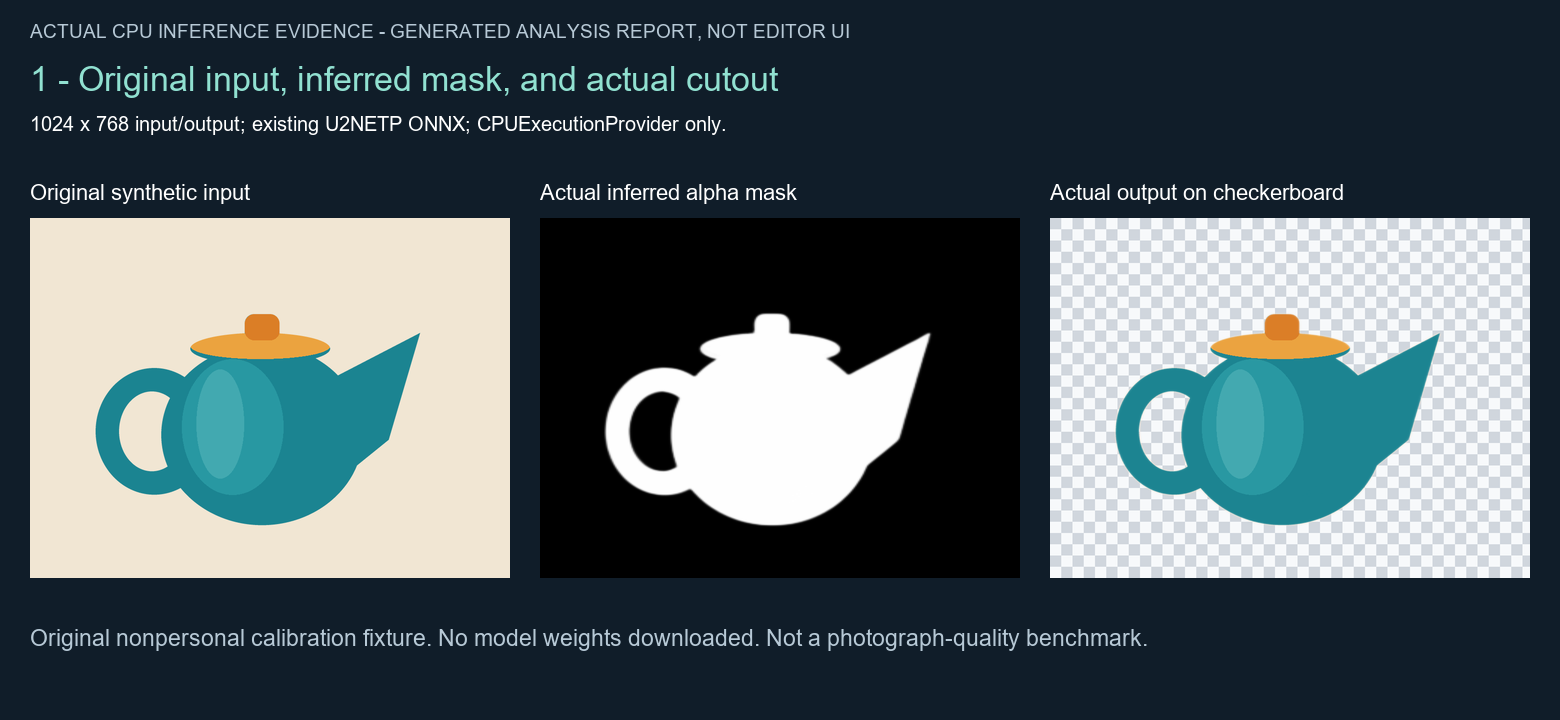
Figure 1. Actual CPU inference on the original synthetic fixture: input, predicted alpha, and checkerboard composite. This is a generated analysis figure made from real files, not an editor or ComfyUI screenshot.
The completed output kept the original 1024 × 768 dimensions. It was saved as PNG in RGBA mode, meaning it contains red, green, blue, and alpha channels. The separately saved mask has the same dimensions. Independent inspection of the packaged files reproduced the alpha counts, mask equality, RGB equality, and synthetic-mask measurements reported later in this guide.
That distinction between an attractive preview and an inspectable file matters in everyday work. A checkerboard can be painted into an opaque image, and a genuine transparent PNG can appear against white in an unsophisticated viewer. A picture alone does not prove what is in the file. We therefore check the saved pixels as well as looking at the result.
Use this walkthrough when you want a small, local, command-line example that exposes its model identity and export steps. It is also useful when you want to learn why a technically valid PNG can still need edge cleanup before it belongs on a finished design.
2. Understand the download before running anything
Keep an untouched copy of the ZIP. Extract a second copy for experiments so that the supplied measurements remain available as a reference. This is especially important because the scripts have different overwrite behavior: the removal script requires a new output directory, while the fixture and report scripts write into named folders beside themselves.
The main files have clear jobs:
make_fixture.pydraws the original teapot and its known alpha intosamples/.remove_background.pyreads an existing local input and the exact expected ONNX model, performs CPU inference, and writes a new output directory.build_evidence.pycreates fixture-specific composites and analysis figures from a run.requirements-tested.txtrecords the three dependency versions used in the measured run.evidence/contains the original run’s mask, cutout, composites, and JSON report.analysis_plates/contains the four labeled illustrations used in this article.MODEL_AND_LICENSE_PROVENANCE.jsonrecords the model identifiers, source links, and licensing boundaries.CHECKSUMS.jsoncontains SHA-256 entries for the packaged supporting files.
The ZIP also contains an explicitly unexecuted InSPyReNet reference graph. It is background context, not a step in the tested workflow. You do not need to open it, import it, or install its dependencies to follow this guide.
If your immediate goal is to examine the finished result, start by opening evidence/cutout.png, evidence/mask.png, and the light and dark composites. You can inspect these without a model or ONNX Runtime. That is a useful first pass because it separates “Can I read and understand the example?” from “Can I reproduce inference on this machine?”
If your goal is reproduction, preserve the folder layout. The report builder locates the sample images relative to its own script, whereas the removal script takes explicit file paths. Moving only one script into another folder may therefore work for inference but break the report-building step. Keeping the bundle together avoids that unnecessary confusion.
For an integrity check of the original archive, compare its SHA-256 with:
423a527ad2bfba9d7da0858838e4ec280feeb28ffd0c91c4262917fb6776e4e6The reviewed archive matched that value and its declared byte count. All 23 entries in its internal checksum list also matched their files. A checksum helps identify the exact archive used for the article. It does not replace reviewing the source, obtaining files from a trustworthy location, or checking whether you have permission to use a model.
3. Check Python and the dependencies
The measured run used an already available Python environment. No package installation was performed for that run. Its versions were Python 3.12.9, NumPy 2.4.4, ONNX Runtime 1.23.2, and Pillow 12.2.0. Treat those as the tested configuration, rather than as a claim that they are the newest versions or the ideal versions for every machine.
The version-specific package records are still available for ONNX Runtime 1.23.2, NumPy 2.4.4, and Pillow 12.2.0. Their metadata lists Python minimums of 3.10, 3.11, and 3.10 respectively. This makes NumPy’s minimum relevant to the combined set, but a shared Python minimum alone does not guarantee that an appropriate binary package exists for every operating system and processor.
First find out what the command python actually runs on your machine:
python --version
python -c "import sys; print(sys.executable)"
Then check the packages in that same interpreter:
python -c "import numpy, onnxruntime, PIL; print('NumPy', numpy.__version__); print('ONNX Runtime', onnxruntime.__version__); print('Pillow', PIL.__version__)"These are inspection commands. They do not install anything or prove inference will succeed. Their purpose is to prevent a common mistake: installing a package into one Python environment and running the script with another. If your system uses python3, an explicit virtual-environment executable, or a platform launcher, use the interpreter you intend consistently throughout the steps.
For a new setup, an isolated virtual environment is a sensible starting point. Python’s documentation explains that a virtual environment keeps its own package installation and can be used by invoking its interpreter directly, without activating it. See the official venv guide. The following is setup guidance, not a fresh installation that was executed for this article:
python -m venv .venvOn a typical POSIX shell, install the pinned requirements through that environment’s interpreter:
.venv/bin/python -m pip install -r requirements-tested.txtOn Windows, the equivalent interpreter path is:
.venv\Scripts\python.exe -m pip install -r requirements-tested.txtUse the same explicit executable for the later script commands if you do not activate the environment. These installation commands may access the package index and download dependencies. The later inference script itself does not download them for you.
The official ONNX Runtime Python guide distinguishes its CPU and GPU packages and advises installing only one of those packages in an environment. This recipe uses onnxruntime and explicitly requests the CPU execution provider. You do not need to add a GPU package merely because your computer has a GPU. See ONNX Runtime’s Python setup documentation.
If dependency installation fails, keep the actual error and check the selected interpreter and available wheels before changing versions at random. A different working combination can be useful, but record it as a new configuration. Avoid calling it an exact reproduction until you have checked the outputs.
4. Identify the exact U2NETP model
The model filename matters less than the model bytes. Many different files can be renamed u2netp.onnx, and a similarly named model can have a different architecture, preprocessing requirement, or output layout. This script avoids that ambiguity by checking the model’s SHA-256 before it creates an inference session.
The file used in the measured run had these identifiers:
- Filename:
u2netp.onnx - Size: 4,574,861 bytes
- SHA-256:
309c8469258dda742793dce0ebea8e6dd393174f89934733ecc8b14c76f4ddd8 - MD5:
8e83ca70e441ab06c318d82300c84806
The MD5 matches the declaration in rembg’s maintained U2NETP session source, which also identifies the upstream hosted ONNX file. That source is useful for locating and identifying this particular converted model. The local match establishes that the inspected artifact has the declared checksum; it does not reconstruct the entire history of how the existing file originally reached the test machine.
The tutorial ZIP deliberately excludes the weights. Obtain a permitted copy from the source identified by the project, review the applicable terms, and place it in a models directory in your working copy. The example commands assume models/u2netp.onnx. If your existing file is elsewhere, pass its real path to --model instead. Quote paths that contain spaces.
The removal script will stop if the file is missing or has a different SHA-256. It will not search the internet for a replacement, quietly accept another architecture, or initiate a download. If you encounter that error, check the file you selected. Do not remove the check simply to make a differently named model run.
U2NETP belongs to the U²-Net family described in the official U-2-Net repository. The repository identifies a small U2NETP variant and discusses the 320 × 320 input used with its pretrained salient-object models. That background explains the naming and scale of this example, but the exact behavior here comes from the included script and the inspected ONNX artifact.
One further distinction is important. This example uses a standalone local pipeline inspired by an inspected small-model backend. It is not a recorded invocation of the rembg command-line application. The current rembg source uses Lanczos resizing and its base normalization divides by an observed image maximum, while this included script uses bilinear resizing and division by 255. See rembg’s base session implementation. Identical model weights therefore do not justify promising identical output from every application that loads them.
5. Run the included fixture safely
Start inside the extracted working copy, in the directory containing the three Python scripts. Keep the untouched archive elsewhere. Ensure the model path is correct and decide on a new output folder, such as new_test_output. The removal script refuses a directory that already exists, even if it happens to be empty. Choose another name rather than deleting results you may want later.
The following commands express the measured workflow using portable relative paths. The original run used an existing model at a machine-specific location; those private paths are intentionally absent from the tutorial.
python make_fixture.py
python remove_background.py --input samples/original_teapot.png --model models/u2netp.onnx --output new_test_output --truth samples/known_alpha.png
python build_evidence.py new_test_output
Run each command only after the previous one succeeds. The middle command is one complete line. Some displays wrap it visually, but it should still be entered as a single command unless you deliberately use your shell’s continuation syntax.
The first command recreates the original illustration, its known alpha, and sample provenance. It writes into samples/. Because the archive already contains the fixture, you can skip regeneration when your goal is to rerun inference against the exact supplied input bytes. Regeneration is useful when you want to examine how the sample is made, but a different Pillow version may change a saved file or its rasterization. Keep track of which input you actually tested.
The second command performs inference and writes three files to the new directory: cutout.png, mask.png, and test_results.json. It also prints the report as JSON. The --truth argument enables measurements against the matching synthetic reference. It does not improve the prediction or train the model; it only gives the evaluation code something to compare with afterward.
The third command makes the article’s diagnostic views. It copies the selected result files into the working copy’s evidence/ directory, then writes composites and four figures into analysis_plates/. It can overwrite files already in those two directories. This is why the working-copy step belongs before the commands, not after them. Do not use the report builder in your untouched evidence archive.
The report builder is specific to this teapot example. It reads the fixture from the bundled sample paths and uses a fixed spout crop and fixture labels. Pointing it at an arbitrary portrait result will not turn it into a valid portrait report. The general-purpose part of this bundle is the removal script, within its documented input assumptions.
After a successful run, open the JSON and check the route, dimensions, provider, model hash, and export checks. A result file left behind by a failed experiment is not sufficient evidence of a completed run. In particular, truth-related evaluation happens after image export in the script, so an invalid truth file can leave PNGs behind without a completed report. Preserve the error, use the correct fixture inputs, and rerun into a fresh directory.
6. Follow the pixels through the pipeline
Understanding the sequence makes troubleshooting much easier. There is no hidden editor state in this recipe. The included script opens an image, prepares one tensor, calls the model once, turns its first prediction into a mask, and attaches that mask to the source colors.
Orientation and color conversion
The script starts with Pillow’s EXIF transpose operation, then converts the image to RGB. Pillow documents exif_transpose as applying the orientation indicated by an image’s EXIF tag and removing that orientation information. See the ImageOps reference. That behavior is relevant to camera images that store a rotation instruction rather than rotated pixels.
The teapot has no rotated-photo scenario, so this run does not separately validate every EXIF orientation case. The orientation step is a portability precaution in the script. It should not be expanded into a claim that the workflow comprehensively handles camera metadata, color profiles, or every photo format.
Converting to RGB also means an existing input alpha channel is not preserved. The script infers a new alpha from RGB pixels. If your input is already a carefully cut-out transparent asset, this recipe may discard useful transparency information. Preserve the original and decide whether you really need another segmentation pass.
The model-size image
Next, the RGB image is resized to 320 × 320 with bilinear interpolation. The original teapot is 1024 × 768, so its rectangular frame is mapped to a square input. The script does not letterbox the image or run a tiled high-resolution pass. It later resizes the predicted mask back to the original dimensions.
That sequence helps explain an important limitation: a 1024 × 768 output file does not mean the model examined every original pixel at that resolution. Fine boundaries have already passed through a smaller representation. Restoring the mask’s dimensions makes it align with the original canvas, but it cannot automatically recover details absent from the prediction.
Numbers, channels, and tensor layout
The resized pixels become a NumPy float32 array and are divided by 255. Each channel is then normalized using the script’s recorded means, 0.485, 0.456, and 0.406, and standard deviations, 0.229, 0.224, and 0.225. These values are applied to red, green, and blue in order.
The array is rearranged from an image-style height-width-channel layout into batch-channel-height-width. For this single image, the resulting tensor shape is 1 × 3 × 320 × 320: one image, three color channels, and two spatial dimensions. The actual model input shape and the preprocessed tensor shape matched in the recorded report.
This is a useful place to resist “helpful” substitutions. Swapping channel order, using a different input size, or normalizing the values differently changes what the model receives. If you intentionally change preprocessing, give that run a new label and measure it. Do not keep the old measurements beside new code.
The CPU session
The script constructs an ONNX Runtime session with CPUExecutionProvider, four intra-operation threads, and one inter-operation thread. It checks that the active provider list is CPU-only, then calls inference once using the model’s input name. ONNX Runtime’s Python API documentation describes sessions, providers, input metadata, and inference calls.
The first output’s first image and first channel are selected as the prediction. This indexing is one reason the script locks the model identity. A different model could return a different number of tensors, shapes, or meanings. A generic .onnx extension does not make models interchangeable.
Before converting the prediction into an image, the script checks that every value is finite. The measured run had no nonfinite predictions. This is a useful technical check for invalid numbers; it does not measure whether the model selected the right subject.
7. Verify the transparent PNG
The model’s prediction is normalized using its observed minimum and maximum, with a small denominator offset to avoid division by zero. The normalized values are scaled to 0–255 and converted to an unsigned 8-bit grayscale image. The mask is then resized to the source dimensions using bilinear interpolation.
The output starts as the source RGB image converted to RGBA. The script attaches the mask using putalpha, saves cutout.png, and saves the same mask separately as mask.png. Pillow’s Image reference documents this operation as adding or replacing an alpha layer. In this workflow, black mask pixels hide the image, white pixels retain it fully, and intermediate values provide partial visibility.
The script then reopens the PNG from disk. This is stronger than checking only the in-memory image: it tests the result of the save step. The report confirms PNG format, RGBA mode, the expected dimensions, and equality between the reopened alpha and the mask used for export. The packaged files were also independently compared afterward; the saved mask.png and the cutout’s alpha matched exactly.
The RGB check deserves particular attention. The output’s red, green, and blue values match the RGB input used by the script. The model does not repaint the teapot, reconstruct an obscured edge, or replace background-colored RGB pixels with newly estimated foreground colors. It changes their visibility by adding alpha.
That includes hidden pixels. A fully transparent pixel can still store the pale background’s RGB values. If software ignores the alpha channel or removes it, those stored colors can become visible again. Background removal is therefore not a secure erasure technique. Do not use a transparent layer as a way to conceal confidential material in a file you intend to distribute.
Partially transparent edge pixels are more subtle. The original fixture was already composited against its pale backdrop. Some boundary RGB values therefore contain a mixture of teapot and backdrop colors. Attaching a new alpha does not automatically undo that mixture. On a dark replacement background, the residual pale color can show as a fringe.
The example does not perform alpha matting, foreground-color estimation, color decontamination, erosion, or manual edge retouching. It also does not threshold the actual output into a hard silhouette. The binary threshold discussed later belongs only to the evaluation calculation. Keeping those distinctions clear helps explain why the PNG passes export checks while its edges still deserve review.
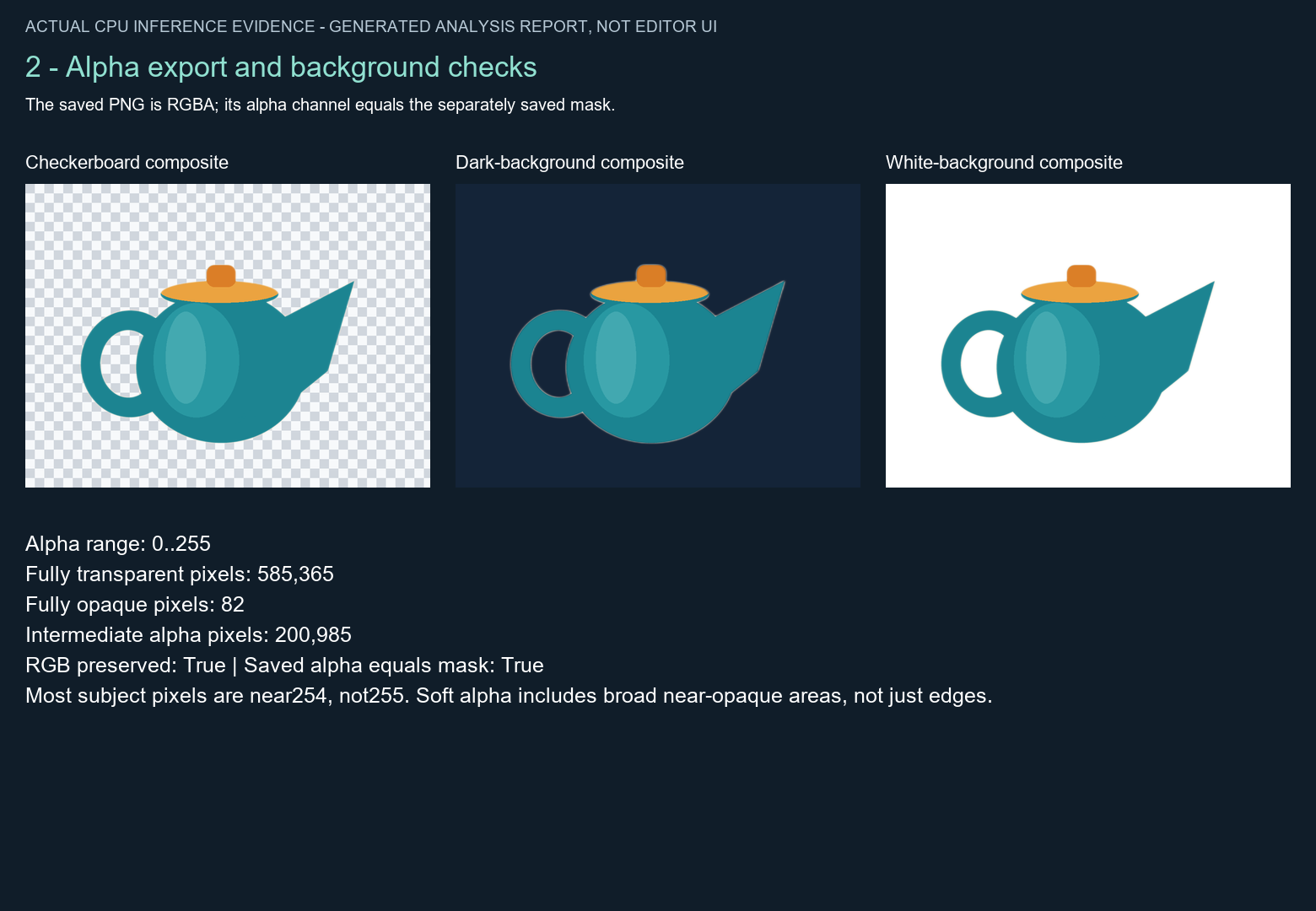
Figure 2. The real RGBA output shown on three diagnostic backgrounds. These flattened composites demonstrate how its transparency behaves; they are separate from the raw transparent file.
Always keep the raw RGBA PNG as the reusable master. A checkerboard composite is an ordinary picture of transparency being demonstrated. It is convenient for an article, but placing that flattened preview on a new background will not remove its checkerboard.
Likewise, avoid converting the master to JPEG when transparency is required. Pillow’s file-format documentation lists JPEG image modes without an alpha channel. Export a separate flattened JPEG only when that is the intended deliverable, and choose its background deliberately.
8. Inspect edges, holes, and background color
Begin at the scale where the asset will actually be used. Does the silhouette read correctly? Is the handle opening visible? Has the spout survived? A useful first impression catches large failures quickly, but it should not be the only inspection.
Next, compare light and dark composites at the same size. The white view is forgiving of pale edge contamination, while the dark view makes that contamination easier to notice. The checkerboard is useful for seeing holes and broad transparency, yet its alternating pattern can distract from subtle halos. Each view answers a different practical question.
In the packaged result, the handle opening is transparent and the spout remains present. The dark composite reveals a light fringe around portions of the outline. The source and mask files explain why: the prediction has a soft transition, and the source colors near the original boundary were produced against a pale backdrop.
For a closer look, Figure 3 enlarges the spout region. The figure uses nearest-neighbor resizing for the diagnostic crop so the display does not introduce additional smoothing. Compare the known synthetic alpha with the inferred alpha, then inspect the absolute-error panel. The inferred edge is visibly softer and the sharp tip has a different transition.
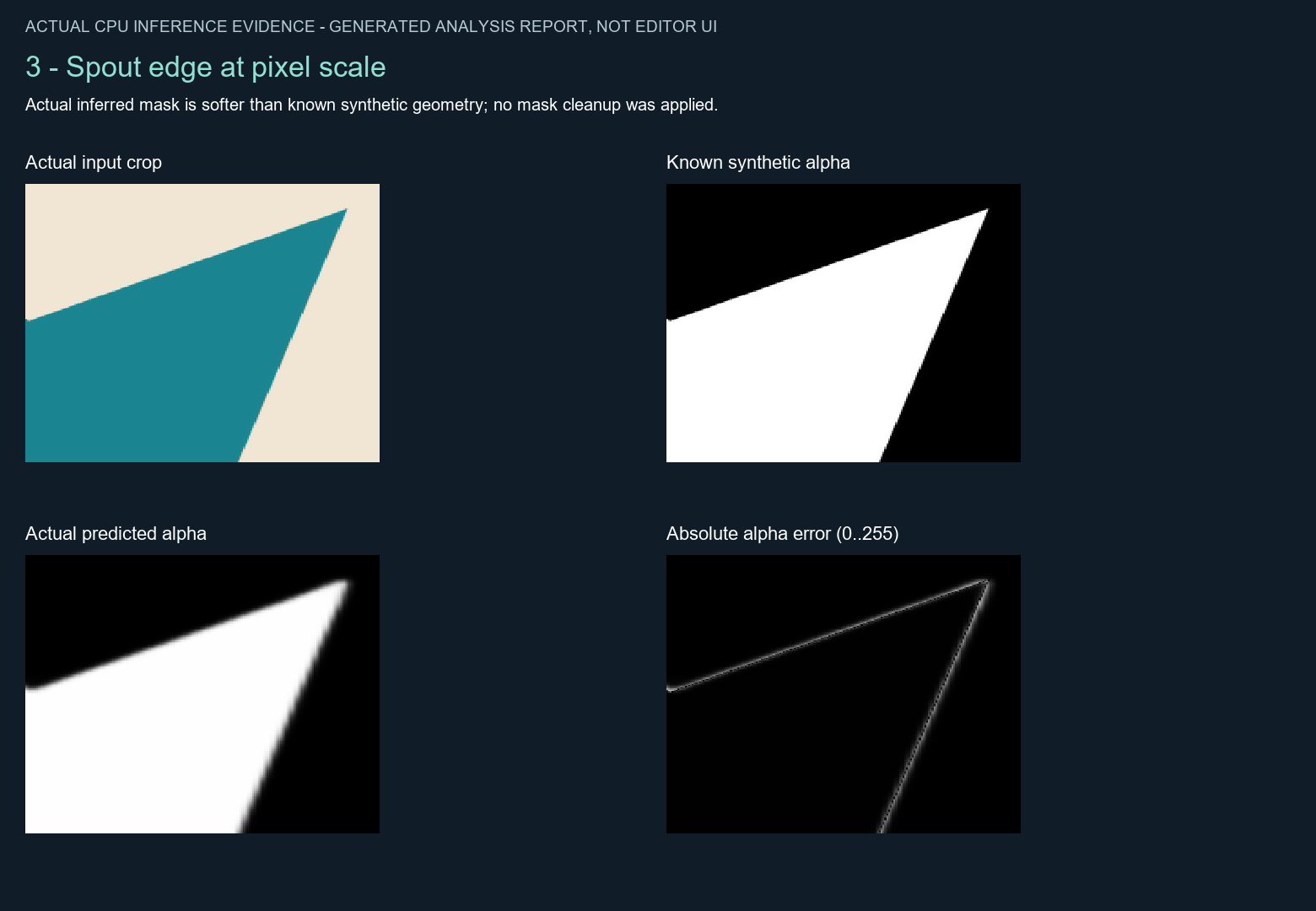
Figure 3. Actual spout-boundary inspection using enlarged crops. The inferred mask is softer than the fixture’s known geometry. The error panel preserves that difference; it has not been retouched to improve the appearance.
The recorded point probes provide useful spot checks. At background coordinate (20, 20), both the reference and output alpha are 0. At handle-hole coordinate (226, 460), both are also 0. At body-center coordinate (550, 470) and spout-tip coordinate (801, 283), the reference is 255 and the actual output is 254.
Those four points are not a complete inspection. A correctly transparent sample in the center of a hole does not prove the entire hole boundary is perfect. A retained spout-tip sample does not prove every neighboring edge pixel has the intended opacity. Use the probes to corroborate the pictures, not replace them.
For a small on-screen illustration, an alpha of 254 may be visually close to full opacity. For a technical pipeline that expects a solid interior, it is still different from 255. Decide what the downstream job requires before calling the result finished. A thumbnail, a composited illustration, and an asset that will undergo repeated transformations may need different review standards.
If you choose to clean the mask manually, save that edited result separately and label it. Keep the original inference output available so that the improvement is attributable to the edit. The figures in this article show the uncleaned output; they do not mix a raw metric with a manually improved preview.
9. Read the quality measurements correctly
The result has 786,432 pixels in total. Its alpha spans the full 0–255 range, with 585,365 fully transparent pixels, 82 fully opaque pixels, and 200,985 intermediate-alpha pixels. Those categories add up to the complete image.
The large intermediate count is easy to misread. It does not mean the teapot has two hundred thousand edge pixels. Much of the retained object is close to 254 rather than exactly 255, so broad interior regions belong to that category too. The report’s soft_alpha_pixels label should be interpreted as “strictly between zero and 255,” not as an automatic boundary detector.
The synthetic binary-mask intersection over union, or IoU, is 0.990744679, rounded to 0.990745 in the figure. For this calculation, the predicted mask and the known reference are each thresholded at 128. Pixels at or above the threshold count as foreground. IoU compares the overlapping foreground area with the area covered by either foreground selection.
This is a useful measure of broad shape agreement on the supplied fixture. It is not a 99.07-percent success rate on arbitrary photographs. There is one image, one threshold, and one specific reference. No collection of portraits, objects, materials, or backgrounds was evaluated here.
Thresholding also discards opacity differences that can matter visually. A predicted value of 128 and a reference value of 255 both land on the foreground side, even though they produce very different compositing behavior. A mask can therefore achieve high binary overlap while still having an edge that is too soft or an interior that is slightly translucent.
The mean absolute alpha error offers a second view. Across the whole image, it is 1.338334 on the 0–255 alpha scale. However, much of this canvas is easy background, so a whole-image average can dilute the effect of errors concentrated near the subject.
The report therefore also evaluates a boundary band defined from the known alpha using 7 × 7 maximum and minimum filters. The band contains 31,858 pixels. Its mean absolute alpha error is 27.677977 on the same scale, substantially higher than the whole-image average. That result is consistent with the visibly softer boundary.
The boundary-band definition matters. This is the specific neighborhood used in the included script, not a universal edge metric with one standardized meaning. Change the band width or the reference image and you change what is being averaged. Record the procedure along with the number if you want another person to reproduce it.
The appropriate conclusion is compact: the model preserved the fixture’s broad silhouette well, exported the inferred alpha correctly, and produced softer boundaries than the construction mask. All three statements can be true simultaneously. None requires calling the result perfect or dismissing it as unusable.
For a future comparison, run each candidate on the same permitted inputs, preserve each raw output, and use the same evaluation definitions. Include examples that represent the actual job rather than selecting only easy shapes. Until such a comparison exists, there is no evidence here for declaring the best background-removal model, the best portrait matting tool, or the best GPU workflow.
10. Interpret the CPU timing
The recorded session initialization took 0.116900 seconds, and the one inference call took 0.114603 seconds. These measurements came from the included script’s timer around those two operations. They describe that run and that environment.
They do not describe the entire user experience from opening a terminal to obtaining a reviewed asset. Input decoding, preprocessing, output conversion, saving images, calculating metrics, and building the report happen outside one or both timed regions. Adding the two numbers does not produce a complete end-to-end latency measurement.
There was no warm-up series, repeated benchmark, throughput test, or controlled comparison with another model. The pack also does not provide a complete standardized hardware benchmark specification. It would therefore be misleading to turn the observed inference time into a general images-per-second promise or to call this result faster than InSPyReNet.
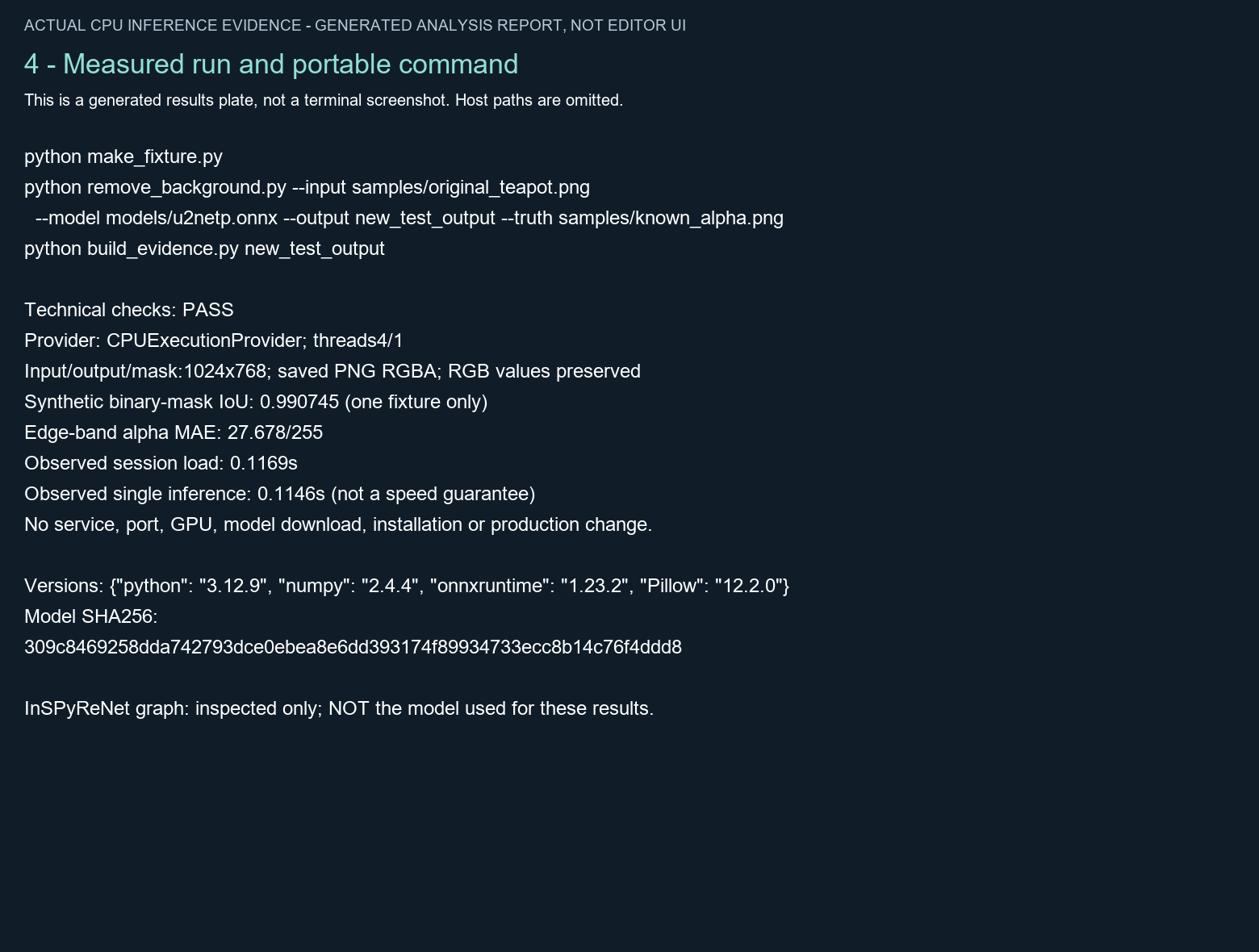
Figure 4. Portable command and measured values derived from the saved JSON report. This is a generated results figure, not a terminal screenshot. Machine-specific paths are omitted.
For your own run, keep session creation and inference timing separate. A script that constructs a fresh session for every image does different work from a long-running application that reuses one session. The provided script creates a new session on each invocation; it is a clear single-image example, not a tuned batch processor.
Also record any changes to the thread settings. Four intra-operation threads and one inter-operation thread are part of this recipe, not a guarantee of optimal settings for every CPU. If you experiment with them, use consistent inputs, repeat measurements, and preserve the original configuration so that the comparison has a meaningful baseline.
The practical takeaway is that this small-model route completed successfully on the CPU in the measured environment. That is enough to demonstrate a working local example. Broader speed and resource claims require broader measurements.
11. Try your own image without misusing the fixture
Once the supplied example works, choose one image that represents your intended use and that you have permission to process. A non-sensitive product illustration or an image you created yourself is a useful first step. Keep the original file and work into a new result directory.
The command structure stays simple:
python remove_background.py --input your_image.png --model models/u2netp.onnx --output your_image_resultOmit --truth unless you have a properly aligned, appropriate reference and have deliberately adapted the evaluation code. The teapot’s known alpha belongs to the teapot. Supplying it beside another image would either fail on dimensions or calculate a meaningless comparison between unrelated content.
The bundled truth-evaluation branch also includes fixed teapot probe coordinates. Matching dimensions alone do not make those probes valid for another image. For an ordinary first test, leave truth evaluation out and concentrate on the export checks and visual inspection. That is more informative than attaching an impressive-looking number to the wrong reference.
Do not run the fixture-specific build_evidence.py against this new result. Instead, open the new cutout.png and mask.png and inspect the cutout on contrasting backgrounds in an image application that respects alpha. Preserve the raw files when making previews, and label any flattened composite as a preview.
Check the entire image, not just the region that looks best. A model may keep the main object while losing a thin attachment, filling a gap, retaining a shadow, or selecting another salient object. The supplied synthetic test does not predict which of those problems will occur in your image.
Existing transparency requires a separate decision. Because this script converts input to RGB before prediction, it does not preserve or combine the incoming alpha. An image with meaningful transparent regions, partially transparent artwork, or hidden RGB content may need a different workflow. Keep that limitation in mind before sending a whole asset collection through the script.
Similarly, this is a single-image recipe. It does not promise full support for every frame in an animated image, every page in a multipage file, or an arbitrary video stream. Start with a conventional still image and verify what was actually loaded. A file extension is not a complete description of its contents.
For more difficult subjects, define the acceptance criteria before expanding the job. A portrait may need convincing hair, a product shot may need an intact handle opening, and a transparent object may require an entirely different standard for partial visibility. Test a representative example, inspect it honestly, and decide whether this pipeline is suitable before investing in batch automation.
12. Troubleshoot common failures
Python cannot import a dependency
An import error usually means the interpreter running the script cannot find the package. First print sys.executable with the same command prefix used to run the tutorial. Then inspect the versions from that interpreter. If you use a virtual environment, call its Python executable directly. Avoid fixing the problem by modifying an unrelated application’s bundled Python environment.
If the package installer reports that no compatible distribution is available, check the package’s version-specific Python and platform requirements. Do not assume that an error on one processor means the model requires a GPU. A packaging problem and an inference-provider requirement are different issues.
The input or model cannot be found
The script requires both files to exist locally. Relative paths are interpreted from the current working directory. Confirm that you are in the folder containing the tutorial scripts, or provide correct full paths. Check spelling, filename extensions, and quoting around spaces. The script deliberately does not download a missing model.
The model checksum does not match
Stop and identify the file. A different U²-Net variant, a changed conversion, an incomplete download, or a file renamed to look correct will not satisfy the expected SHA-256. Compare its source and size with the provenance information. Changing the expected hash without validating the model would remove the safeguard that makes this particular recipe reproducible.
The output directory already exists
Choose a new output directory name. The no-overwrite rule protects earlier experiments and helps keep the JSON report associated with the correct output images. Reusing a directory manually can make it difficult to tell whether a file belongs to the latest attempt or an earlier run.
Remember that the report builder has different behavior: it updates the working copy’s fixed evidence and analysis folders. Preserving an untouched archive is still necessary even though inference itself has a new-directory guard.
PNG files exist, but the run ended with an error
Read the error before using the files. In this implementation, the output images are saved before the optional truth metrics are calculated. A mismatched or otherwise invalid reference can therefore interrupt the later stage. The presence of cutout.png alone does not establish that the complete requested evaluation passed.
Use the matching fixture and truth for the demonstration, or omit truth for your own image. Rerun into a fresh directory so that the final report and outputs come from one clear attempt.
The image still looks as if it has a background
First determine which file you opened. A white, dark, or checkerboard composite is deliberately flattened. Open the raw cutout.png when you need transparency. Then check whether the viewer honors alpha and whether a later export converted the image to RGB or JPEG.
The saved mask provides another useful clue. If the background is black in the mask and the cutout’s alpha matches it, a white viewer backdrop may simply be a display choice. If the unwanted area is light in the mask, the model retained it and you are looking at a segmentation limitation instead.
The outline is soft or has a pale fringe
This can be a genuine property of the result. The example resizes through a 320 × 320 prediction, keeps soft alpha values, and preserves the source RGB colors. It does not estimate clean foreground colors at a mixed boundary. Inspect dark and light composites to understand the artifact before changing parameters.
A hard threshold might remove some soft pixels while damaging curves or fine details. It is a possible separate edit, not a universal repair. If you apply cleanup, keep the original inference output and compare the edited asset at its intended display size.
A new image looks wrong despite a technical pass
The technical checks concern format, dimensions, alpha export, RGB preservation, and basic pixel conditions. They do not know which object you wanted or whether the edge is aesthetically acceptable. A mask can be saved correctly and still select the wrong content. Inspect the subject and intended use before deciding that the job is finished.
A different application produces a different mask
Check the exact weights, resizing, normalization, postprocessing, and output settings. The same model name can be wrapped in different pipelines. This tutorial documents its own script, and its measurements should stay attached to that script. A comparison with another application requires running and inspecting that application separately.
13. Privacy, provenance, and licenses
The demonstrated inference path uses local files and a CPU session. Its script does not contain a model-download step, call an upload service, start a server, or open a listening port. The recorded run used existing dependencies and an existing model. This is the scope of the local-processing claim.
Obtaining dependencies or model weights is a separate setup activity and may involve network access. A third-party application that wraps the same model may also behave differently. Do not assume that every tool displaying “U2NETP” has identical privacy behavior. Check the actual software and the workflow you use.
The downloadable sample contains no people or personal details. It was drawn for this test, and the article figures show only that sample and its derived outputs. No production photograph, account information, private server configuration, or machine-specific path is needed to follow the commands.
Your own images can still contain sensitive visual information or metadata. The tutorial does not promise comprehensive metadata sanitization. More importantly, the cutout preserves RGB values even where alpha makes them invisible. If a file must be safe to share, review the actual file and its contents for that purpose rather than relying on transparency as concealment.
Licensing should be checked by asset category. The sample provenance grants a CC0 waiver for the original fixture and known alpha, and the pack identifies its derived demonstration outputs with that sample license. The Creative Commons CC0 page explains the public-domain dedication and its limits. The included tutorial scripts have an MIT notice in CODE_LICENSE.txt.
Third-party projects have their own terms. The U-2-Net repository publishes an Apache 2.0 license, while rembg publishes an MIT license. These references identify the repository licenses; they should not be replaced by a blanket claim that every associated model, dataset, conversion, or input image has the same permissions.
The pack makes no separate redistribution determination for the specific converted ONNX binary, so it excludes the weights. The sample’s CC0 waiver and the tutorial code’s MIT notice do not relicense a third-party model. Review the source and applicable terms before using or redistributing the model in a product, downloadable bundle, or service.
Keep the provenance files beside your results if you adapt this example. Knowing the input, model hash, code, dependency versions, and edits makes a later investigation much easier. If you share only an appealing preview and lose the underlying files, you also lose much of the evidence needed to explain how that preview was produced.
14. Where InSPyReNet fits
InSPyReNet is a separate route. The transparent-background project describes its InSPyReNet-based tool, and the ComfyUI wrapper repository documents a node integration. Their existence does not mean either one generated the images in this article.
The supporting inspection found metadata for an installed node and its dependency in another environment. It also preserved a sanitized reference graph. However, the graph was not queued, no InSPyReNet checkpoint identity was verified, and no InSPyReNet inference result was established. The teapot evidence comes from U2NETP through ONNX Runtime on CPU.
A generic “base” mode or background-removal button is not enough to identify an execution path if software can fall back to another model. For a reliable test, record the actual checkpoint, provider, preprocessing, and output. If a fallback runs, label the result with the fallback that actually produced it.
An InSPyReNet follow-up would need its own checkpoint provenance, working runtime, actual inference, saved outputs, and transparent-export checks. A GUI walkthrough would also need genuine interface captures showing the controls used. The four figures here are evidence reports made from image files; they cannot stand in for screenshots of a workflow that was never executed.
For now, the separate graph is useful as research context. It does not extend this guide’s quality results or performance measurements, and it should not be used to title the current download as an InSPyReNet or ComfyUI tutorial.
15. Frequently asked questions
Is U2NETP the best background-removal model?
This test cannot establish that. It demonstrates one inspectable CPU workflow on one original illustration. The best practices in the title concern recording the model, preserving evidence, checking alpha, and reviewing edges. Choosing a model for a specific job requires representative images and a consistent comparison with alternatives.
Can I use this without a GPU?
The recorded run used only CPUExecutionProvider, and the script explicitly selects that provider. A GPU is not required for this tested route. That does not guarantee the same timing or installation experience on every CPU, operating system, or Python environment.
Does the ZIP include the model?
No. It includes the scripts, original fixture, known alpha, actual results, analysis figures, and provenance. Supply a permitted copy of the exact ONNX file identified in the model section. The script checks its SHA-256 and does not automatically download missing weights.
Is the 1024 × 768 result a high-resolution prediction?
The output retains the source canvas size, but inference receives a 320 × 320 tensor. The predicted mask is resized back to 1024 × 768. Preserved output dimensions should not be confused with inference performed at full source resolution or with a separate high-resolution matting stage.
Why does an opaque-looking teapot have so few alpha-255 pixels?
Most of the retained subject is near 254 rather than exactly 255 in this run. Those values are visually close to fully opaque in many circumstances, but they still belong to the intermediate-alpha category. The actual counts are 82 alpha-255 pixels and 200,985 pixels strictly between 0 and 255.
Does 0.990745 IoU mean it works on 99 percent of photos?
No. It is the thresholded-mask overlap for the supplied synthetic teapot, evaluated against its own construction mask. It says nothing about the percentage of unrelated photographs that would produce an acceptable cutout. The edge-band error and enlarged crops show limitations that the binary overlap alone does not describe.
Can this preserve hair, fur, or glass?
Those subjects were not tested. The fixture contains an opaque illustrated object with known geometry. Hair, fur, glass, translucency, motion blur, and complex backgrounds require representative examples and suitable evaluation. Do not infer those capabilities from the teapot result.
Can I replace the background after removal?
The raw RGBA PNG can be composited onto another background in software that honors alpha. The provided light, dark, and checkerboard composites demonstrate that operation on this output. Inspect the edges on the intended replacement color because pale contamination that is subtle on white can be visible on dark colors.
Can I use the mask for inpainting?
Check the receiving tool’s mask convention first. In this recipe, white retains visible subject and black hides background. Another application may interpret white as the region to replace, or may expect an inverted mask. The presence of a grayscale file alone does not establish compatibility with a particular inpainting workflow.
Can I process a whole folder with this command?
The supplied removal script accepts one input per invocation. A folder or batch workflow is not implemented or benchmarked here. You could build a separate batch tool, but it would need filename handling, failure reporting, output protection, and decisions about session reuse. Validate representative images before expanding the workload.
Will an already transparent input keep its original alpha?
No. The script converts the input to RGB and attaches newly inferred alpha. If your original transparency is important, preserve it and use a workflow designed to combine or retain it. Running background removal again is not automatically an improvement for an already prepared asset.
Are the figures screenshots of the software?
No. They are clearly labeled analysis figures generated from the actual input, mask, output, and report. The command figure is not a captured terminal. There are no fabricated editor controls, ComfyUI sessions, or GUI results in this tutorial.
16. A practical completion checklist
Before you use a result, make sure you can answer these questions:
- Which exact input, model file, script, and dependency versions produced it?
- Did the run finish, and does its report identify the expected CPU provider?
- Is the saved master a PNG with an alpha channel and the expected dimensions?
- Does that alpha match the separately saved mask?
- Does the subject look acceptable on both light and dark backgrounds?
- Are important holes, thin parts, and boundaries intact?
- Are any cleanup edits labeled and saved separately from raw inference?
- Do you have permission to use the input and the model for the intended purpose?
For the included teapot, the file-format and export checks passed, the broad silhouette was retained, and the edge softness remained visible. That is a useful, reproducible result with a clear next step: test one permitted image that resembles your real work, inspect it carefully, and keep the evidence attached to the result.