ChatGPT can listen to a meeting or a voice note and turn it into a transcript, a summary and a list of next steps. In late 2026 this happens in two places: Record in the older ChatGPT Classic app, and the new Meetings plugin.
That split confuses a lot of people. This guide explains who gets which tool, how to record step by step, what you get afterwards, the limits, the privacy rules and how to fix the usual problems.
- Record still exists: it lives in ChatGPT Classic for macOS on Plus, Pro, Business, Enterprise and Edu.
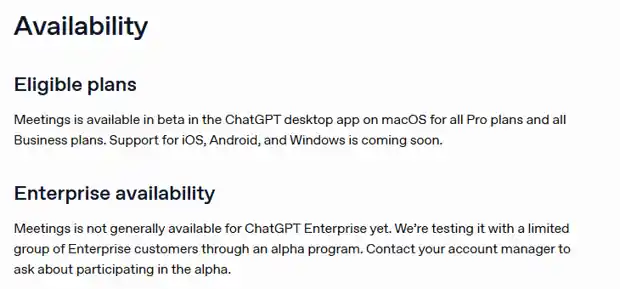
- Meetings is the new version: a beta plugin in the new ChatGPT desktop app on macOS for Pro and Business plans.
- Limits: Record stops at 2 hours per session. Meetings stops at 4 hours.
- Output: Record writes a summary in a canvas. Meetings saves a private page with a summary and action items in ChatGPT Space.
- Privacy: audio is deleted after processing in both tools. You must get consent from everyone you record.
Record vs Meetings: What Changed in 2026
OpenAI first shipped “record mode” in the ChatGPT macOS app in mid 2025. It reached Plus subscribers in July 2025, after starting on business and Pro plans.
On 9 July 2026, OpenAI renamed the old macOS app to ChatGPT Classic. A new ChatGPT desktop app arrived with Chat, Work and Codex in one window. Record stayed in Classic.
Then in early October 2026, OpenAI launched the Meetings plugin for the new app. It does the same core job but adds your own typed notes, context from connected apps, and action items ChatGPT can start for you.
So you are not choosing between an old name and a new name. You are choosing between two apps, and each app has its own recorder.
Which Plans and Platforms Have It
Both tools are Mac only right now. OpenAI says Windows, iOS and Android support for Meetings is “coming soon”, with no date. Here is the full side by side view, based on OpenAI’s help pages as of 27 November 2026.
| Detail | ChatGPT Record | Meetings plugin |
|---|---|---|
| App | ChatGPT Classic for macOS | New ChatGPT desktop app on macOS |
| Plans | Plus, Pro, Business, Enterprise, Edu | Pro and Business (beta); Enterprise in a limited alpha |
| Free and Go plans | Not included | Not included |
| Windows, iOS, Android, web | No | Not yet (“coming soon”) |
| Max session length | 2 hours (pauses don’t count) | 4 hours |
| Where notes go | A canvas in a chat | A meeting page in ChatGPT Space |
| Your own notes during the call | No | Yes, typed on the meeting page |
| Calendar reminders | No | Yes, with the Google Calendar or Outlook Calendar plugin |
| Bot joins the call | No | No |
| Audio kept | Deleted after transcription | Deleted once notes are ready |
| Enterprise and Edu default | Off until an owner turns it on | Not generally available |
If you are not sure which plan you need, my ChatGPT plans comparison breaks down Free, Go, Plus and Pro. Note that Plus users only get Record, not Meetings, at the time of writing.
How to Use Record in ChatGPT Classic
Record works in any regular chat in ChatGPT Classic for macOS. It captures your microphone and your Mac’s system audio, so it hears both you and the people on a Zoom, Teams or Meet call.
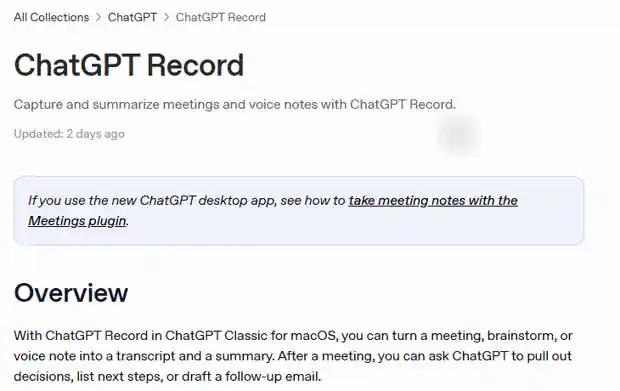
- Open ChatGPT Classic. Sign in with a Plus, Pro, Business, Enterprise or Edu account. Open a normal chat, not a Temporary Chat.
- Click Record meeting. It is the circle with a dot in the center, in the message bar.
- Allow permissions. The first time, your Mac asks for microphone and system audio access. Say yes to both.
- Get consent, then talk. Tell everyone you are recording. ChatGPT transcribes as you speak and a timer shows the length.
- Pause if needed. Click the Stop icon to pause. Click Resume to carry on.
- Finish with Send. After Stop, click Send. The app uploads the transcript and ChatGPT writes your notes in a canvas.
- Review the canvas. Edit the notes or ask for a follow-up email or project plan.
Changed your mind halfway? Click the X in the upper-left corner of the recording window. You then get three choices:
- Upload: send the transcript so ChatGPT makes your notes.
- Delete: throw the recording away.
- Cancel: go back and keep recording.
How to Use the Meetings Plugin
Meetings lives in the new ChatGPT desktop app, the one with Chat, Work and Codex. If you only have ChatGPT Classic, the app shows a prompt to download the new one. Both apps can stay installed side by side.
Set up Meetings once
- Open the new ChatGPT desktop app on your Mac and sign in with a Pro or Business account.
- Open Plugins in the sidebar.
- Find Meetings and install it. It may show as Meetings (Beta).
- Open Meetings in the sidebar and go through the onboarding flow.
- Allow microphone and system audio when your Mac asks.
- Optional: connect a calendar. Install the Google Calendar or Outlook Calendar plugin for meeting reminders. You can skip this and start notes by hand.
Take notes in a meeting
- Get consent first. The consent reminder in the app is only shown to you. It does not tell the other people.
- Open Meetings and click Take notes.
- Type your own notes on the meeting page if you want. Questions and side thoughts are kept next to the AI summary.
- Stop taking notes when the meeting ends. Processing can take a few minutes.
- Open the meeting page. Review the summary and suggested action items, then share the page or start an action item.
Tip: Meetings can spot when you join a call and offer to take notes, even if the meeting is not on your calendar. It also reminds you to stop if it hears no audio for a few minutes.
Summaries, Canvas and Action Items
The output is where the two tools differ most. Both give you a transcript and a summary, but they store and use it in different ways.
What Record gives you
- A canvas: ChatGPT writes a summary in a canvas, in the same chat or a new one.
- Editable notes: you can change the canvas text directly.
- Speaker labels: Record can tell speakers apart. Unknown voices get labels like “Speaker 1”, which you can rename after.
- Record history: with Reference record history on, you can ask in a new chat, “What did we decide in Monday’s roadmap meeting?”
What Meetings gives you
- A meeting page: saved in ChatGPT Space, private by default.
- A personalized summary: it mixes the transcript, your typed notes and context from connected apps you have authorized.
- Action items: suggested follow-ups such as drafting an email or updating a project plan. You can edit each one and start it with one click.
- Sharing: people you share a page with see the notes but not the transcript.
Good follow-up prompts
After either tool finishes, you can keep chatting about the meeting. These prompts work well:
- Decisions: “List every decision we made, with who owns it.”
- Follow-up: “Draft a short follow-up email to the client from these notes.”
- Plan: “Turn the next steps into a project plan with dates.”
- Check: “What open questions did we not answer?”
Warning: OpenAI says ChatGPT can make mistakes when it transcribes or summarizes. Always check names, numbers and dates before you send notes to anyone.
Recording Voice Notes and Brainstorms
Record is not only for calls. OpenAI pitches it for brainstorms and voice notes too. Open a chat in ChatGPT Classic, click Record meeting, and talk through your idea on your own.
When you send it, you get a tidy summary in a canvas. You can then ask ChatGPT to turn the ramble into an outline, a to-do list or a first draft.
Meetings also covers in-person talks, since it uses your Mac’s microphone. That makes it handy for a quick chat at your desk with a colleague.
Note: Recording is different from voice chat. If you want to talk back and forth with ChatGPT out loud, that is Voice. See my ChatGPT voice mode guide for how that works.
Limits You Should Know
Both tools have hard stops. Plan long workshops around them.
- Record length: up to 2 hours per session. Pauses don’t count. At 2 hours, ChatGPT stops and makes your notes.
- Meetings length: stops at 4 hours per session.
- Meetings auto stop: it also stops when you close the laptop lid or when it hears no audio for a long time.
- Platform: macOS only for both tools today.
- Language: Record works best in English. Accuracy varies in other languages.
- No replay: audio is deleted after processing, so you cannot listen back later.
- Temporary Chat: the Record button does not show in a Temporary Chat.
For a meeting longer than 2 hours in Record, stop and start a new session at a natural break. You can then ask ChatGPT to combine both summaries.
Consent, Privacy and Data Retention
OpenAI is clear that you are responsible for consent. Laws differ by country and state, and some places need every person on a call to agree before you record.
Warning: Neither tool tells other people they are being recorded. Say it out loud or in the meeting invite, and get a clear yes from everyone before you start.
What happens to the audio
- Record: audio is used to make the transcript, then deleted. OpenAI says it does not train on the audio.
- Meetings: audio streams to OpenAI and is deleted from your Mac and OpenAI’s servers once the notes are ready. It cannot be replayed.
- Offline: if your Mac goes offline, Meetings may keep audio on the Mac until it can upload and finish.
Training and retention
On a personal account, transcripts and canvases may be used for training if “Improve the model for everyone” is on. You can turn it off in Data controls.
Business, Enterprise and Edu content is not used for training by default. Notes and transcripts follow the same retention as the chat they sit in.
If you delete a chat with a recording, it leaves your history straight away. OpenAI schedules it for deletion within 30 days, with some security and legal exceptions. It may take a few days before ChatGPT stops using those notes in other chats.
Want ChatGPT to forget past meetings in general? On the web, open Settings > Personalization and turn off Reference record history. My ChatGPT memory guide covers the other memory settings.
Admin Controls for Business and Enterprise
Workspace owners decide who can record. In Enterprise and Edu, Record is off by default.
- Turn Record off: open workspace permissions, find Record, and turn off “Allow members to use ChatGPT record”.
- Block record history: under Record, turn off “Allow ChatGPT to reference past notes and transcripts”. Recording still works.
- Meetings on Business: both ChatGPT Space and the Meetings plugin must be enabled for the workspace.
- Compliance: the Compliance API includes canvases and transcripts made with Record. The Recordings endpoints don’t include past meetings imported into ChatGPT Meetings.
If your team also uses connected apps, read my ChatGPT apps and connectors guide. Meetings pulls context from those apps when it writes summaries.
Troubleshooting: Common Problems and Fixes
Record button is missing
- Leave Temporary Chat: open a regular chat.
- Check the app: Record is only in ChatGPT Classic for macOS. The new app uses Meetings instead.
- Check the plan: you need Plus, Pro, Business, Enterprise or Edu.
- Ask your admin: in a workspace, the owner may have Record turned off.
Meetings is not showing
- Use the new desktop app on macOS, not ChatGPT Classic and not the web.
- Check the plan: Meetings needs Pro or Business. Plus does not have it yet.
- Install it: go to Plugins and install Meetings.
- Business users: ask your admin to enable ChatGPT Space and the Meetings plugin.
Other people’s voices are missing
This is almost always a permissions problem. Open System Settings > Privacy & Security > Microphone and enable ChatGPT. Then open Privacy & Security > Screen & System Audio Recording and enable ChatGPT too.
The microphone captures you and people in the room. System audio captures people on the call. You need both.
Poor transcript quality
Use a headset or move somewhere quieter. Check that the right microphone is selected and connected.
Can’t find your notes
- Record: open the chat where you started. If the notes are not there, check recent chats, because the canvas may open in a new chat.
- Meetings: open Meetings in the sidebar or the meeting page in ChatGPT Space.
- Delayed notes: Meetings needs a few minutes to process. If you were offline, reconnect so the audio can upload.
If ChatGPT itself is down or won’t load, see my ChatGPT not working fix guide.
FAQ
Is ChatGPT record mode still available in 2026?
Yes. It is called ChatGPT Record and works in ChatGPT Classic for macOS. The new ChatGPT desktop app uses a separate Meetings plugin instead.
Can I use ChatGPT Record on Windows or iPhone?
No. Record is macOS only. OpenAI says Windows, iOS and Android support for Meetings is coming soon, but there is no date.
Do ChatGPT Plus users get the Meetings plugin?
Not yet. Meetings is in beta for Pro and Business plans. Plus users can still use Record in ChatGPT Classic.
How long can ChatGPT record a meeting?
Record stops at 2 hours per session, and pauses don’t count. Meetings stops at 4 hours, or earlier if you close the lid or it hears no audio for a long time.
Does a bot join my Zoom or Teams call?
No. Both tools record from your Mac’s microphone and system audio. Nobody else sees a bot, so you must tell people yourself.
Can I listen to the recording later?
No. The audio is deleted after processing. You keep the transcript, summary and notes.
Does OpenAI train on my meeting transcripts?
Not on the audio. On personal accounts, transcripts and canvases may be used if “Improve the model for everyone” is on. Business, Enterprise and Edu content is excluded by default.
Sources
- OpenAI Help Center: ChatGPT Record
- OpenAI Help Center: The Meetings plugin in ChatGPT
- OpenAI Help Center: Moving to the new ChatGPT desktop app
- OpenAI Help Center: ChatGPT macOS app release notes (ChatGPT Classic, 9 Jul 2026)
- OpenAI Help Center: Enterprise compliance information for ChatGPT record mode
- ChatGPT on X: Meetings plugin announcement (Oct 2026)
- MacRumors: ChatGPT Plus gets Record mode on Mac (Jul 2025)
- Inc.: ChatGPT’s new Meetings feature (Oct 2026)