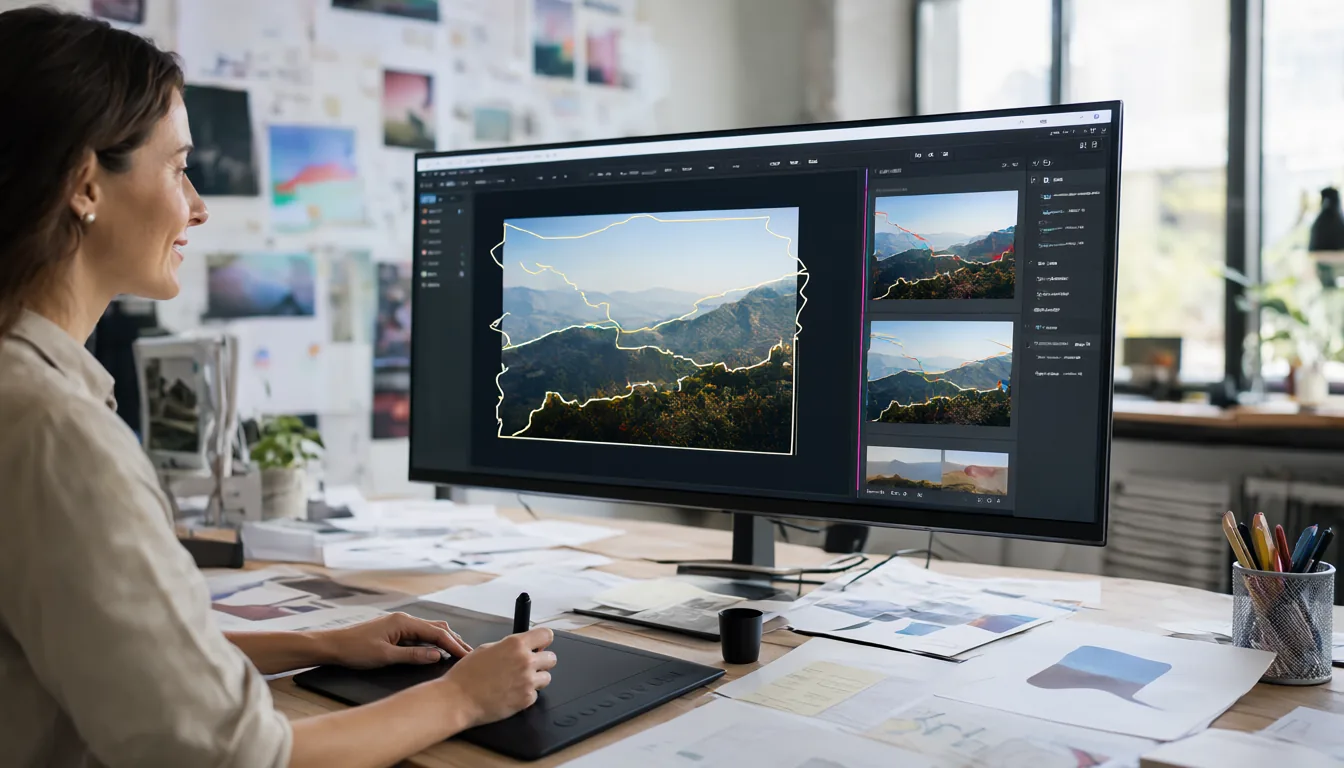
Photoshop has changed more in the last two years than in the decade before. Generative Fill now lets you choose between Adobe’s own Firefly model and partner models such as Google’s Gemini (Nano Banana) and Black Forest Labs’ FLUX. Harmonize blends composites in one click, Generative Upscale replaces old interpolation, and the new AI Assistant can perform multi-step edits from a sentence. This guide explains every major AI feature in Photoshop as of late 2026, where to find each one, how many generative credits they use, and the prompt and selection habits that get clean results.
- Generative Fill and Expand appear in the Contextual Task Bar after you make a selection or extend the canvas with the Crop tool. Output is now up to 2K with cleaner edges.
- Model picker: Firefly is the default and commercially safe; partner models (Gemini “Nano Banana”, FLUX Kontext) cost more credits.
- Harmonize matches lighting and colour of pasted objects; Generative Upscale enlarges with AI (including a Topaz Gigapixel option).
- AI Assistant (public beta on desktop since June 2026, on web and mobile since March 2026) edits from plain-language requests, automatically or step by step.
- Credits: Firefly fills cost about 1 credit each, Harmonize about 5; check your balance in your Adobe account.
Photoshop AI Features at a Glance
| Feature | What it does | Where to find it | Approx. credits |
|---|---|---|---|
| Generative Fill | Add, replace or remove content in a selection from a prompt | Contextual Task Bar after a selection; Edit > Generative Fill | 1 (Firefly), more for partner models |
| Reference Image | Guides Generative Fill with a style or object reference | Inside the Generative Fill prompt bar | Same as fill |
| Generative Expand | Outpaints beyond the canvas edges | Crop tool > Fill: Generative Expand | 1 |
| Generative Remove | Erases objects and rebuilds the background | Remove tool, mode set to Generative AI | 1 |
| Harmonize | Matches lighting, colour and shadows of a composited layer | Contextual Task Bar on a layer; Image menu | About 5 |
| Generative Upscale | AI enlargement with regenerated detail | Image menu | Varies |
| AI Assistant | Conversational, multi-step editing | AI Assistant panel (beta) | Varies |
Credit costs come from Adobe’s documentation and recent independent guides and can change, so always check the number shown next to the Generate button before running a partner model.
Generative Fill: Step by Step
- Open your image and make a selection with the Lasso, Marquee, Object Selection or Select Subject. Leave a little margin around the area; the AI needs context.
- The Contextual Task Bar appears under the selection. Click Generative Fill.
- Type a short, concrete prompt such as wooden bench with a red cushion. Leave it empty to remove what is selected and fill with background.
- Optional: pick a model from the dropdown and add a Reference Image to guide style or the exact object.
- Click Generate. Photoshop creates a new Generative layer with three variations in the Properties panel.
- Cycle through the variations, click Generate again for more, and mask the layer to blend edges if needed.
Because every result lands on its own layer with a mask, Generative Fill is non-destructive. You can hide it, paint on the mask or delete it at any time.

Firefly vs Nano Banana vs FLUX: Which Model to Pick
Since late 2025, Adobe lets you choose partner models in Generative Fill. Adobe’s own model is the default and is trained on licensed and public-domain content, which matters for commercial work. Adobe launched Firefly Image 5 at MAX in October 2025 with more photorealistic output and layered, prompt-based editing.
| Model | Strengths | Weaknesses | Use it for |
|---|---|---|---|
| Adobe Firefly (default) | Commercially safe, good blending, cheapest in credits | Can be generic on complex prompts | Client work, product shots, backgrounds |
| Google Gemini (Nano Banana) | Follows detailed instructions well, strong at editing existing objects, good text | Higher credit cost; partner model terms | Changing clothing, object swaps, signs with text |
| FLUX Kontext Pro | Consistent style and character edits, realistic textures | Higher credit cost | Style-matched edits, portraits, fashion |
If you are curious how these models compare outside Photoshop, my roundup of the best open-source text-to-image models covers FLUX and others you can run free on your own GPU.
Generative Expand
- Select the Crop tool (C).
- Drag the crop handles beyond the image edges.
- In the options bar set Fill to Generative Expand.
- Click the checkmark, then Generate in the Contextual Task Bar (prompt optional).
Expand is ideal for turning a vertical photo into a 16:9 YouTube thumbnail or adding headroom for text. Expand in steps of 20 to 40 percent rather than tripling the canvas in one go; results stay more coherent.
Remove Tool and Generative Remove
The Remove tool (under the Spot Healing Brush, shortcut J) lets you brush over power lines, tourists or blemishes. Set the mode to Generative AI On for larger objects; it uses a diffusion model that rebuilds the background with fewer artifacts. For small spots, Auto mode is faster and does not consume credits. Tick Remove after each stroke off if you want to paint over several objects before processing.
Harmonize for Realistic Composites
Harmonize solves the classic “pasted-on” look. Place an object or person on a new layer over a background, select that layer, and click Harmonize in the Contextual Task Bar (it is also in the Image menu). Photoshop analyses the scene and adjusts the layer’s lighting, colour, contrast and shadows, giving you three variations. Harmonize graduated from beta to full release during 2026. Tips:
- Cut the subject out cleanly first (Select Subject, then Select and Mask) so Harmonize does not carry old background colour.
- Position and scale the subject before running it; the light direction it creates depends on placement.
- Lower the Generative layer’s opacity slightly if the effect is too strong.
Generative Upscale
Old Image Size enlargements smeared detail. Generative Upscale, found under the Image menu, regenerates fine detail when you enlarge, which is useful for low-resolution product shots, old phone photos and AI images that need print resolution. Adobe has also integrated a Topaz Gigapixel option for photographers who prefer its look. Upscale works best at 2x; at 4x, check faces and text carefully because the model can invent detail.
The Photoshop AI Assistant
The AI Assistant is Adobe’s agentic editing panel. You describe an outcome, such as remove the distractions, warm up the light and make a 1:1 crop for Instagram, and it either applies the edits automatically or walks you through them step by step in Guided mode so you learn which tools it used.
- Web and mobile: public beta since March 10, 2026. On mobile you can speak your requests. Photoshop web also has AI Markup: draw on an area and type a prompt to control exactly where the change happens.
- Desktop: Adobe announced on June 18, 2026 that the AI Assistant is in public beta across Photoshop, Premiere, Illustrator, InDesign and Frame.io. In Photoshop it can swap backgrounds, resize assets for multiple platforms and organise layers.
To try it, update Photoshop through the Creative Cloud app, then open the AI Assistant panel from the Window menu or the panel icon on the right. Because it is a beta, keep a copy of important files before letting it make bulk changes.
Other AI Tools: Select Subject, Neural Filters, Firefly Boards
- Select Subject and Select Sky: one-click AI masks; choose Cloud mode in preferences for finer hair detail.
- Neural Filters: Skin Smoothing, Colorize, Photo Restoration and Depth Blur (Filter > Neural Filters).
- New adjustment layers: non-destructive Clarity, Dehaze and Grain, plus a combined Lighting layer.
- Firefly Boards: send layers to Adobe’s ideation canvas, explore variations with many models, and bring them back.
- Generate Image: create an image from scratch inside Photoshop (Edit > Generate Image).
Generative Credits Explained
Every generative action uses generative credits from your Adobe plan. Standard Firefly actions in Photoshop cost about 1 credit, Harmonize about 5, and partner models such as Gemini and FLUX sit in a more expensive tier. Plans include a monthly allowance that resets with your billing date. Non-generative AI like Select Subject, Remove in Auto mode and Neural Filters does not use credits. Check your balance at your Adobe account page or by hovering over the credit counter in Photoshop. Adobe has also run limited-time unlimited-generation offers for paid subscribers, so look out for those.
Prompt and Selection Tips That Actually Work
- Describe the object, not the command. Write brown leather armchair, not add a chair here.
- Select generously. Include shadows and a little surrounding area so the fill blends.
- Match the selection shape. A tall, thin selection produces tall, thin objects.
- Use Reference Image when you need a specific product or style instead of rewriting the prompt five times.
- Work at the final size. Fill is generated at up to about 2K; large selections on huge files will look soft. Upscale after.
- Generate in passes. Fix the background first, then add objects, then Harmonize.
- Switch models when one fails. If Firefly ignores details, try Nano Banana for instruction following or FLUX for texture.
Worked Example: Clean Up a Photo for a YouTube Thumbnail
- Open the photo and use Image > Canvas Size or the Crop tool to set 1280 x 720 (16:9). Drag the crop wider than the photo.
- Generative Expand: with the Crop tool, choose Generative Expand and click Generate with an empty prompt. Pick the best of the variations.
- Remove distractions: select the Remove tool, set it to Generative AI, and brush over people or signs in the background.
- Swap the sky or background: Select > Sky or Select Subject, invert the selection, then Generative Fill with a prompt like soft sunset sky, warm light.
- Add a prop: lasso an empty area and Generative Fill a laptop on the table. Use Harmonize if it looks pasted in.
- Upscale and export: Generative Upscale if the original was small, then File > Save a Copy as JPG or WebP under 2 MB.
That flow uses roughly 5 to 15 generative credits depending on how many variations you generate and whether you use Harmonize or partner models.
Photoshop vs Free and Cheaper Alternatives
| Tool | Cost | Generative AI | Best for |
|---|---|---|---|
| Photoshop | Subscription | Firefly plus partner models, Harmonize, Upscale, AI Assistant | Professional retouching and composites |
| Affinity (by Canva) | Free app; Canva AI tools need Canva Pro | Via Canva AI | Photoshop-style editing without a subscription |
| Photopea | Free in the browser (ads), paid ad-free | Basic AI tools | Opening PSDs quickly on any PC |
| GIMP | Free, open source | Via plugins | Free desktop editing |
| ComfyUI with local models | Free, needs a GPU | Inpainting and outpainting with FLUX, Qwen Image Edit and others | Unlimited generations with no credits |
Generative Fill Not Working? Fixes
- Button is greyed out: you need an active selection, an internet connection and a signed-in Creative Cloud account. Generative Fill does not run offline.
- “The generated images violated user guidelines”: Firefly’s content filter blocked the prompt or the image area. Rephrase neutrally or adjust the selection.
- Not available in your region or age group: Generative AI features require users to be 18+ and are restricted in some countries.
- Blurry results: the selection is too large for the output resolution. Fill smaller areas or upscale afterwards.
- Out of credits: wait for your monthly reset, buy a credit add-on, or use non-generative tools.
Frequently Asked Questions
Is Generative Fill free in Photoshop?
It is included with Photoshop plans and uses generative credits from your monthly allowance. Free Photoshop web and mobile users get a limited number of generations.
Can I use Generative Fill images commercially?
Adobe positions Firefly output as safe for commercial use. Partner model outputs have their own terms, so check before using them in paid client work.
Which Photoshop version has the AI Assistant?
The latest Photoshop desktop release from the Creative Cloud app (public beta since June 2026), plus Photoshop on the web and mobile.
Does Photoshop AI work offline?
No. Generative features run in Adobe’s cloud. Select Subject (device mode) and some Neural Filters can work locally.
Is there a free alternative to Generative Fill?
Yes. You can run open models locally with ComfyUI. My guides to Qwen-Image 2.1 Edit in ComfyUI and OpenFill generative fill for GIMP show how.
How many generative credits do I get?
It depends on your plan and changes often. Check the credit counter in Photoshop or your Adobe account page; non-generative tools like Select Subject never use credits.
Final Thoughts
Photoshop’s AI is now a toolkit rather than a single magic button. My daily set is Generative Fill with Firefly for backgrounds, Nano Banana when a prompt needs precise instruction following, Harmonize for composites and Generative Upscale before export. The AI Assistant is still a beta but already saves time on repetitive resizing and clean-up. Learn the selection habits above and you will burn far fewer credits.
Making videos too? See my guides to CapCut AI features and Canva AI 2.0.
Sources
- Adobe Blog: Image editing just got smarter with AI in Photoshop and Firefly (March 10, 2026)
- Adobe News: Major expansion of the creative agent across Creative Cloud (June 18, 2026)
- Academy Class: Adobe Photoshop’s new AI features explained (2026)
- Adobe Help: Photoshop on desktop release notes
- The Letter Two: Adobe unveils Firefly Image 5
- Adobe Community: Nano Banana and FLUX Kontext in Generative Fill