Canva MCP is now generally available, with no waitlist. Canva announced it on 24 November 2026, together with new REST APIs, a bigger Canva CLI and its Canva Craft image model for agents.
This means your AI assistant can now create, edit and export real, editable Canva designs from a chat. In this guide I will show you how to connect it to Claude, ChatGPT, Cursor, VS Code and more.
- What: Canva MCP lets AI assistants and agents use Canva as a tool. It is GA since 24 Nov 2026.
- Who can use it: every Canva account, including Free. Brand templates, autofill and resize need a paid plan.
- Clients: ChatGPT, Claude, Gemini, Copilot, Cursor, Codex, Grok, Perplexity Computer and more.
- Server URL for MCP clients:
https://mcp.canva.com/mcp. - Limits: 300 requests per minute per user overall, with lower caps on heavy tools like
generate-image(10 per minute). - Also new: REST APIs for design and image generation, service accounts with API credits, and a CLI that can call the REST APIs.
What Is Canva MCP?
MCP stands for Model Context Protocol. It is an open standard that lets an AI model call outside tools in a safe, structured way. If you are new to it, my best MCP servers list explains the idea with more examples.
Canva MCP is a remote MCP server run by Canva. It turns Canva features into tools your assistant can call. You do not install Canva on a server. You just connect your Canva account and approve access.
Canva uses a few similar names, which can be confusing:
- Canva AI Connector: the everyday name in the Canva Help Center. This is what you add to ChatGPT, Claude, Gemini or Copilot.
- Canva MCP: the developer name on canva.dev. This is what builders add to their own apps, platforms and agents.
- Canva Dev MCP: a different server. It helps coding agents build Canva apps with the Developers SDK. It does not touch your designs.
What Changed in the November 2026 Update
Canva first let developers add Canva MCP on their own, with no approval step, in late October 2026. The 24 November announcement made it officially generally available and added several new pieces.
- Redesigned tools: Canva merged overlapping tools so agents need less context to pick the right one. Canva says this helps even smaller models.
- New agent skills: generate editable designs, standalone images and videos, remove backgrounds, turn flat images into layered designs (Magic Layers), resize, export and autofill with data.
- Canva Craft: Canva’s own image generation model is now available through MCP and the API.
- REST APIs: design generation, image generation, background removal and Magic Layers can now be called directly.
- Service accounts: your backend can call the REST APIs without each end user signing in, paid with API credits.
- Canva CLI: it now goes beyond in-editor apps. You and your agents can create designs, run Autofill and call REST APIs from a terminal.
- New Developer Portal flow: you start from what you want to build, then pick the Canva features you need.
Canva also shared some growth numbers. Nearly 500,000 people signed up for Canva through MCP in the last month, and MCP usage grew 93% from September to October. Canva also said 72% of typed CLI commands in October came from agents.
Plans, Availability and Admin Controls
The Canva AI Connector works on all Canva accounts, including Canva Free and Canva Education. Some actions need a paid plan, and AI actions use your Canva AI allowance.
| Feature | Canva Free | Canva Pro and above |
|---|---|---|
| Search, create and edit designs | Yes | Yes |
| Generate designs and images | Yes (uses AI allowance) | Yes (uses AI allowance) |
| Comments, folders, asset uploads | Yes | Yes |
| Export (PDF, PNG, JPG, PPTX, MP4) | Yes, standard quality | Yes, plus lossless PNG and transparent backgrounds |
| Resize designs | Limited trial | Yes |
| Brand templates and brand kits | No | Yes |
| Autofill | No | Yes (not on Pro Lite) |
Eligible paid plans listed by Canva are Pro, Teams, Business, Nonprofit, Enterprise and Education. Canva says it will add usage limits for Autofill in the future.
Team admin controls
On Teams, Business, Nonprofit, Education and Enterprise, your admin decides if members can connect AI assistants. The AI Connector counts as a third-party integration.
- Where: Admin Dashboard, then Controls and Permissions, then Third-party integrations.
- Scope: it is on or off for the whole team. You cannot allow it for only some people yet.
- When off: nobody can connect, and existing connections stop working.
Note: Your AI assistant has its own plan rules too. Canva’s setup docs say ChatGPT connectors need a paid ChatGPT plan, and Claude’s connector route needs a paid Claude plan. Check your assistant’s plan page before you start.
How to Connect Canva to ChatGPT and Claude
Both assistants already list Canva in their built-in directory, so you do not need any server URL. Menu names change often, so look for the closest match if a label differs.
Connect Canva to ChatGPT
- Open ChatGPT. Use the web app or the desktop app and start a new chat.
- Open the tools menu. Click the Tools or plus menu, then the connectors or apps option. My ChatGPT apps and connectors guide shows where this lives today.
- Find Canva. Search the list for Canva and turn it on.
- Sign in and allow. Log in to the right Canva account and click Allow on the permission screen.
- Test it. Ask: “Show me my most recently edited Canva design.”
Connect Canva to Claude (web or desktop)
- Start a new chat in Claude.
- Open connectors. Click the Search and tools button, then Manage connectors.
- Find Canva. Click Connect next to Canva. If it is not listed, click Browse connectors and look under the Web tab.
- Allow access. Sign in to Canva and click Allow.
- Approve tool calls. The first time Claude uses a Canva tool, it asks for approval. Approve it to continue.
Gemini and Microsoft Copilot have their own Canva guides in the Canva Help Center. The flow is the same idea: find Canva in the assistant’s apps or connectors, sign in, then allow.
Tip: You can connect the same Canva account to several assistants at once. If one stops working, check you are signed in to the right Canva account in that assistant.
How to Connect Canva to Claude Code, Cursor, VS Code and Gemini CLI
Coding tools connect to the MCP server URL https://mcp.canva.com/mcp. The Cursor, VS Code and Claude Desktop config methods use mcp-remote, which needs Node.js 22.16 or later with npm.
Claude Code
Run this one command in your terminal. For more on MCP in Claude Code, see my Claude Code MCP setup guide.
claude mcp add --transport http Canva https://mcp.canva.com/mcpCursor
Create .cursor/mcp.json in your project and add this config. Canva’s docs also offer a one-click Cursor install link.
{
  "mcpServers": {
    "Canva": {
      "command": "npx",
      "args": ["-y", "mcp-remote@latest", "https://mcp.canva.com/mcp"]
    }
  }
}
VS Code
Create .vscode/mcp.json and add this config. Note that VS Code uses a servers key, not mcpServers.
{
  "servers": {
    "Canva": {
      "type": "stdio",
      "command": "npx",
      "args": ["-y", "mcp-remote@latest", "https://mcp.canva.com/mcp"]
    }
  }
}
Claude Desktop (config file method)
Open Settings (Ctrl + , on Windows or Command + , on macOS), go to the Developer tab and click Edit Config. Paste the same mcpServers block used for Cursor above.
Gemini CLI
Canva ships an official extension. Run this inside your Gemini CLI project:
gemini extensions install https://github.com/canva-sdks/canva-gemini-extensionFinish the setup
- Save the config file.
- Restart the app. Cursor, VS Code and Claude Desktop only read MCP config at start.
- Allow in the browser. A browser tab opens. Sign in to Canva and click Allow.
- Switch to Agent mode. In Cursor and VS Code, MCP tools only show in Agent mode.
- Run a test prompt. Ask for your most recent Canva design and approve the tool call.
Canva MCP Tools and Rate Limits
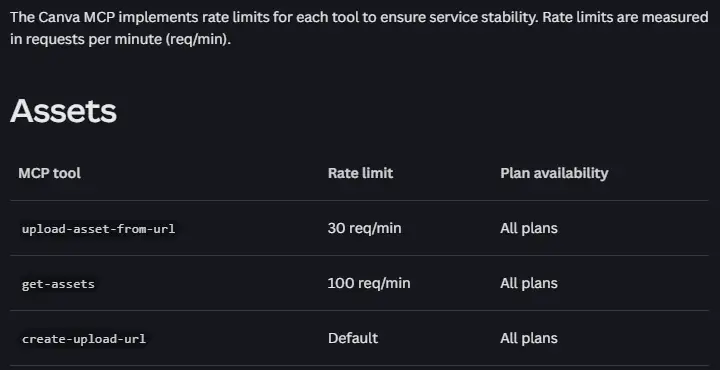
Canva publishes the full tool list with a rate limit for each one. Tools without their own limit share a server-wide cap of 300 requests per minute per user, counted across all your MCP clients.
| Group | Example tools | Rate limit | Plan |
|---|---|---|---|
| Designs | search-designs, get-design, generate-design, copy-design |
100/min for reads, 20/min for generate and copy | All plans |
| Images | generate-image, remove-background, separate-image-layers |
10/min for generate-image | All plans |
| Editing | start-editing-transaction, perform-editing-operations, commit-editing-transaction |
20 to 50/min | All plans |
| Exports | export-design |
20/min | All plans (quality by plan) |
| Assets | upload-asset-from-url, get-assets |
30/min and 100/min | All plans |
| Comments | comment-on-design, reply-to-comment |
100/min and 20/min | All plans |
| Folders | create-folder, search-folders, move-item-to-folder |
20 to 100/min | All plans |
| Imports | import-design-from-url |
20/min | All plans |
| Resizes | resize-design |
20/min | Pro and above |
| Brand templates | search-brand-templates, list-brand-kits, create-design-from-brand-template |
20 to 100/min | Pro and above |
| Autofill | autofill-design, get-brand-template-dataset |
60/min and 100/min | Pro and above |
There is also a help tool and a resolve-shortlink tool for Canva short links. Canva advises apps to discover tools at connection time, because the set can change.
How editing works
Edits happen inside a transaction. The agent starts a transaction, performs operations, then commits. Nothing is saved until the commit succeeds, so a half-done edit will not mess up your design.
Design generation is asynchronous. create-design returns a job ID and a polling policy, and the agent polls get-create-design-async-job until the status is completed.
Example Prompts to Try
Once connected, talk to your assistant in plain English. Here are prompts that map well to the tools above:
- Find: “Find my Canva designs about the spring sale and list the last three I edited.”
- Create: “Create a 6-slide Canva presentation on our Q4 results with a clean blue style.”
- Edit: “In my ‘Team Offsite’ design, change the date on page 1 to 12 December.”
- Resize: “Resize my Instagram post into a YouTube thumbnail.” (Pro and above)
- Autofill: “Use my brand template to make a certificate for each name in this list.” (paid plans)
- Export: “Export my flyer as a PDF and give me the link.”
- Image: “Generate an image of a cozy coffee shop and remove the background.”
Warning: AI actions such as generating designs and images use your monthly Canva AI allowance. Your assistant also has its own message limits. Large batch jobs can use both up fast.
For Developers: Build Your Own Canva MCP App
If you run your own AI platform or internal tool, you can add Canva MCP yourself with no approval wait. The developer server URL is https://api.canva.com/connect/v1/mcp, using Streamable HTTP.
- Create an app. Open the Canva Developer Portal and create a new app.
- Pick the surface. Go to Outside Canva and select Start integrating.
- Turn on Canva MCP. Under Integration methods, enable Canva MCP.
- Get credentials. Under Credentials, copy the client ID and generate a client secret. Store the secret safely, because it is shown only once.
- Add redirect URLs. Add your OAuth redirect URL under Redirect URLs.
- Configure your client. Point your MCP client at the server URL with OAuth.
- Verify. Test the connection with MCP Inspector, as Canva’s verify guide suggests.
Every user must sign in with their own Canva account. Canva MCP does not support organization-level or service-account login, so each user only sees content they own or that was shared with them.
If your client uses a Client ID Metadata Document (CIMD) instead of a client secret, Canva says you still need to apply through its waitlist to register the redirect URI.
Best practices from Canva
- Timeouts: set at least 60 seconds for
generate-design. - 429 errors: retry with bounded exponential backoff. Do not use bulk automation to dodge per-user limits.
- Honest states: do not tell users a design was saved until the commit response confirms it.
- Short-lived links: treat preview and thumbnail URLs as temporary. Do not store or share them.
- Handoff: always give an “Open in Canva to edit” link at the end of a design task.
Security matters here, because the server can edit and export real files. My MCP security best practices post covers tool approval and token storage in more depth.
The New REST APIs and Canva CLI
MCP is great for chat. For exact control in your own backend, Canva now pushes its REST APIs and CLI alongside it.
Service accounts and API credits
Since 6 November 2026, Canva supports service apps. They get tokens through the OAuth client credentials flow and use new service:* scopes, so your end users do not need to sign in to Canva.
- Billing: service-account usage draws from your team’s API credit pool. You buy a credit pack in the Developer Portal first.
- Cost per call: each request uses credits at the endpoint’s documented rate. Canva did not publish dollar prices in the announcement.
- APIs covered: Assets, Autofills, Brand templates, Designs, Design imports, Exports, Folders, Generations, Merges and Resizes.
Recent REST API changes worth knowing
- 402 for credits: since 28 October 2026, an exhausted credit quota returns
402withcredit_quota_exceededorapp_credit_quota_exceeded, not 429. - Model capacity: image generation can return 429 with
model_capacity_reached. Retry later or pick another model. - Model retirement: responses can include
model_expiry, and retired models fail withmodel_retired. - Design reviews: new preview APIs (23 November) list design reviews and approve or request changes.
Canva CLI basics
The CLI needs Node.js v22, v24 or v26. Install it with npm, then sign in:
npm install -g @canva/cli@latest
canva login
canva api designs list
You can create a design straight from the terminal. Add --dry-run to check the request without calling the API:
canva api designs create --type type_and_asset --design-type preset --design-type-name presentation --title "Q3 Review" --dry-runThe same package also runs Canva Dev MCP for coding agents with npx -y @canva/cli@latest mcp. Remember, Dev MCP helps agents build Canva apps. It does not edit your designs.
My Take
This is a smart move by Canva. Most AI tools can make a picture, but the result is a flat file. Canva MCP gives you editable designs with real layers, text and brand templates, which is what teams actually need.
The free tier access is generous, and the per-tool limits are clear. The weak spot is admin control: it is still all-or-nothing per team, which some companies will not like.
If you already pay for Claude or ChatGPT and use Canva, connect it today. It takes two minutes and saves a lot of copy and paste.
Troubleshooting: Common Problems and Fixes
| Problem | Likely cause | Fix |
|---|---|---|
| Canva not listed in Claude | Directory filter | Click Browse connectors and check the Web tab. |
| Cannot connect, or connection dropped | Admin turned off third-party integrations | Ask your admin to enable Canva’s AI Connector under Controls and Permissions. |
| Wrong designs or none found | Signed in to a different Canva account | Disconnect Canva in the assistant, reconnect and sign in to the right account. |
| Upgrade message on brand templates | Canva Free account | Brand templates and autofill need a paid plan, and only templates shared with you appear. |
| Tools missing in Cursor or VS Code | Not in Agent mode, or app not restarted | Save config, restart, then switch to Agent mode. |
npx or mcp-remote fails |
Old Node.js | Install Node.js 22.16 or later with npm. |
| Timeout on design generation | generate-design is slow |
Raise the client timeout to 60 seconds. |
Export fails with license_required |
Design has premium elements | Remove premium elements or use a plan that covers them. |
| AI actions paused | Canva AI allowance used up | Wait for the allowance to refresh or upgrade. |
| 429 rate limit errors | Too many calls per minute | Slow down and retry with backoff. See my 429 errors guide for the general pattern. |
If your network uses a firewall or proxy, Canva says to allow responses from canva.com and canva.ai to avoid cross-origin issues.
Frequently Asked Questions
Is Canva MCP free?
Yes, the Canva AI Connector works on all Canva accounts, including Canva Free. Brand templates, autofill and resize need a paid plan, and AI actions use your Canva AI allowance.
When did Canva MCP become generally available?
Canva announced general availability on 24 November 2026. Self-serve setup for developers, with no approval wait, started in late October 2026.
Which AI assistants work with Canva?
Canva lists ChatGPT, Claude, Gemini, Microsoft Copilot, Codex, Cursor, Grok, Perplexity Computer, Manus, Lovable, Make and more. Any MCP client can also use the server URL directly.
What is the Canva MCP server URL?
For assistants and coding tools, use https://mcp.canva.com/mcp. Developers building their own OAuth app use https://api.canva.com/connect/v1/mcp with Streamable HTTP.
Can my AI assistant see all my company’s designs?
No. Each user signs in with their own account, and the assistant only sees designs that user owns or that were shared with them. Edits need edit permission on the design.
Is Canva AI Connector the same as Canva Dev MCP?
No. The AI Connector works with your designs. Canva Dev MCP helps coding agents build Canva apps with the Developers SDK and does not touch your designs.
What are the Canva MCP rate limits?
Each user has a cap of 300 requests per minute across all clients. Heavy tools have lower caps, such as 10 per minute for generate-image and 20 per minute for exports.
Sources
- Canva Newsroom: Building the design layer of the internet (Canva MCP update)
- Analytics Insight: Canva makes design and image generation tools available through MCP
- Canva Help Center: Connect Canva to an AI assistant
- Canva Developers: Set up the Canva AI Connector
- Canva Developers: MCP tools and rate limits
- Canva Developers Blog: Add Canva MCP yourself
- Canva Developers: Best practices for Canva MCP
- Canva Developers Blog: Service accounts
- Canva Developers: Making REST API requests with the Canva CLI
- Canva for AI agents